Reviews on


If you have used WordPress for a while, you probably remember the classic editor. It was simple, but also limited. The WordPress Block Editor, also called the Gutenberg editor, is the new way of creating pages and posts.
It works with blocks instead of one long text box. Text, images, buttons, and other elements are all blocks. You can move them, arrange them, and style them without touching code.
Honestly, this change has made it a lot easier to design pages, create custom layouts, and build sites that look more modern.
From our work with clients, we have found that once people get used to it, the Block Editor makes creating and managing a WordPress site faster and more flexible.
In this post, we will explain how it works and why it matters.
- The WordPress Block Editor (Gutenberg editor) replaced the old classic editor and is now the default editor in WordPress core.
- It uses content blocks like the paragraph block, image block, gallery block, columns block, and button block to create media-rich pages.
- Each block type comes with its own settings, available in the block toolbar or sidebar, giving more customization options than the old editor.
- Features like block patterns, reusable blocks, and the site editor let you design entire sections, adjust content width, and even style with custom CSS.
- With the ability to add more blocks from the block directory, switch between the visual editor and HTML editor, and design layouts in just a few minutes, the Block Editor feels closer to a full WordPress page builder.
What is WordPress Block Editor and What Makes it Different
The WordPress Block Editor, better known as the Gutenberg editor, is the default editor that replaced the old classic editor. Instead of one long text box, it uses blocks for everything you add to a page or post.
Each block is its own piece of content. A paragraph block is for text, an image block pulls in photos from the media library, and a button block lets you add calls to action. You can move these around, style them, or group multiple blocks together to create entire sections.
The big difference is flexibility. With the classic editor, even simple layouts often needed plugins or custom code. The Block Editor makes it possible to create columns, design full-width sections, or build patterns with just a few clicks.
In short, it gives you more control. Instead of being stuck in one box, you can arrange and edit content in a way that feels closer to building a page visually.
Gutenberg vs. Classic Editor
Before Gutenberg, WordPress used the classic editor. It was basically one long text box where you added all your content. You could type text, insert images, and do some formatting, but anything beyond that usually needed shortcodes, custom HTML, or plugins.
The Gutenberg editor changed this approach completely. Instead of one box, you now work with content blocks. Each block is its own element, whether it is a paragraph, an image, a button, or even a gallery. You can arrange blocks any way you like and adjust their look with simple settings, no coding needed.
Here are a few key differences:
Layout and design
- Classic Editor: Limited, mainly text-based, harder to create custom layouts.
- Gutenberg: Works like a page builder, with blocks you can arrange into different layouts.
Ease of use
- Classic Editor: Simple to start with, but harder when you want advanced features.
- Gutenberg: A small learning curve at first, but easier in the long run for creating rich pages.
Customization
- Classic Editor: Needed extra plugins or coding for anything beyond basic content.
- Gutenberg: Built-in options like block styles, block patterns, and reusable blocks give more control.
Performance
- Classic Editor: Light and straightforward, but limited in flexibility.
- Gutenberg: Part of WordPress core, outputs cleaner code than many third-party page builders, and works across all modern WordPress sites.
In short, the classic editor was simple but limited. Gutenberg gives you more freedom to create, design, and manage your site directly inside WordPress.
Top Benefits of Using the Block Editor
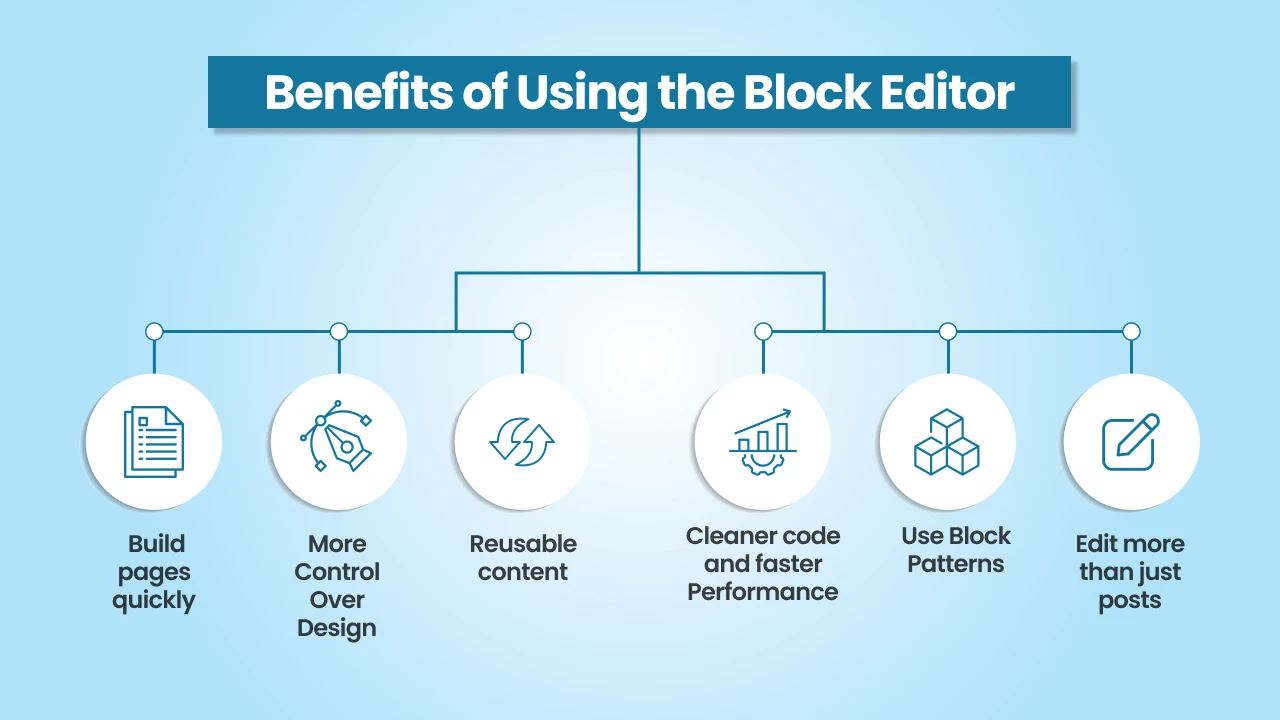
The Block Editor brings a lot of changes to WordPress, and most of them make life easier for anyone building or managing a site. Here are the main benefits:
1. Build pages quickly
Adding content no longer means typing into one big box. You can add blocks for paragraphs, images, buttons, galleries, and more. The block inserter makes this fast. You can search for the block you need and place it right into your page. In just a few minutes, you can create layouts that would have taken much longer in the classic editor.
2. More control over design
Each selected block has its own settings and options in the block toolbar. For example, a paragraph block lets you change alignment and text size. An image block lets you adjust size, crop, or link directly from the media library. You can also change layout with columns, set content to full width, or adjust block styles to match your design.
3. Reusable content
One of the best features the WordPress Block Editor offers is reusable blocks. If you often use the same element like a call-to-action button, a styled text box, or a pricing section, you can save it. Then, you can drop that block into other posts or pages, and if you edit it once, it updates everywhere.
4. Use block patterns
Block patterns are pre-designed combinations of blocks. You can use them to create entire sections like image galleries, multi-column layouts, or headers without starting from scratch. You can also create your own patterns if you want to save custom layouts for future use.
5. Cleaner code and faster performance
Unlike many third-party page builder plugins, the Block Editor is part of WordPress core. That means the code it outputs is lighter. This usually results in high-performance websites that load faster and are easier to maintain.
6. Edit more than just posts
With block themes, the editor goes beyond post content. You can use the site editor to design headers, footers, archives, and landing pages. It gives you more freedom to manage your whole WordPress site from the same place.
How to Use Gutenberg WordPress Block Editor
1. Open the editor
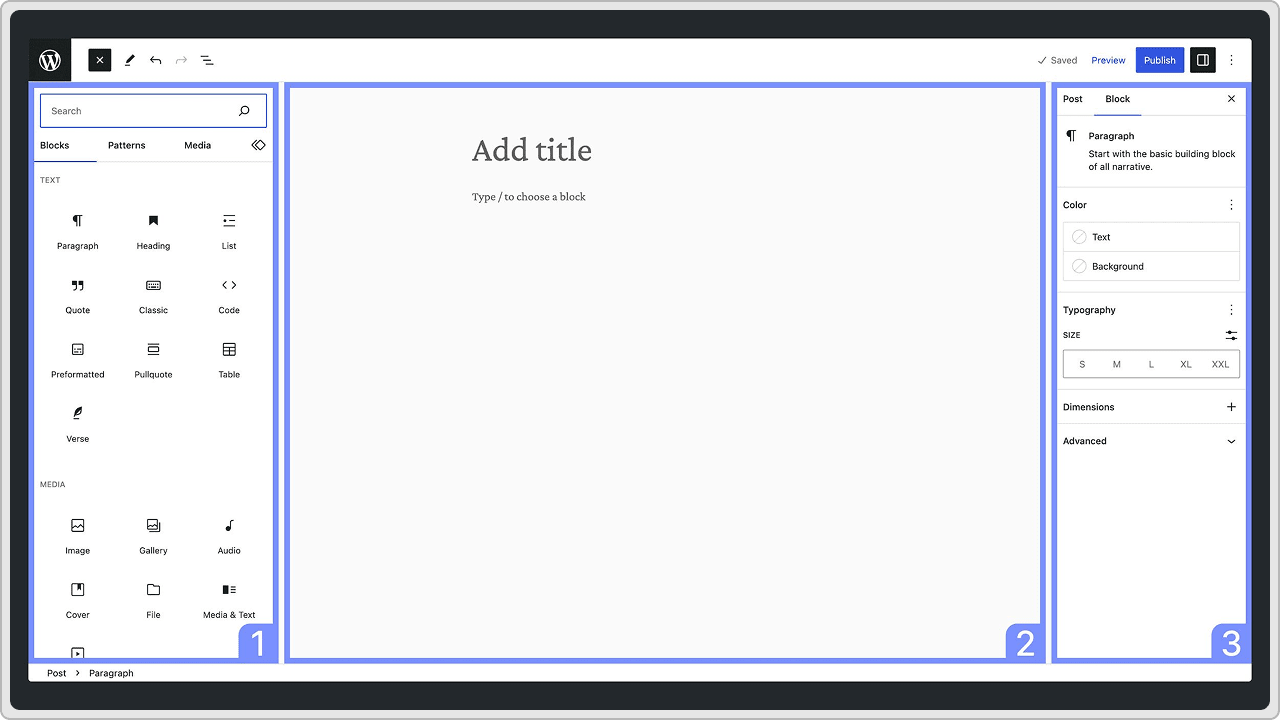
When you create a new post or page in WordPress, the Block Editor will automatically open. This is now the default editor in WordPress. You will see a clean screen with a space to start writing and a toolbar at the top.
2. Add blocks
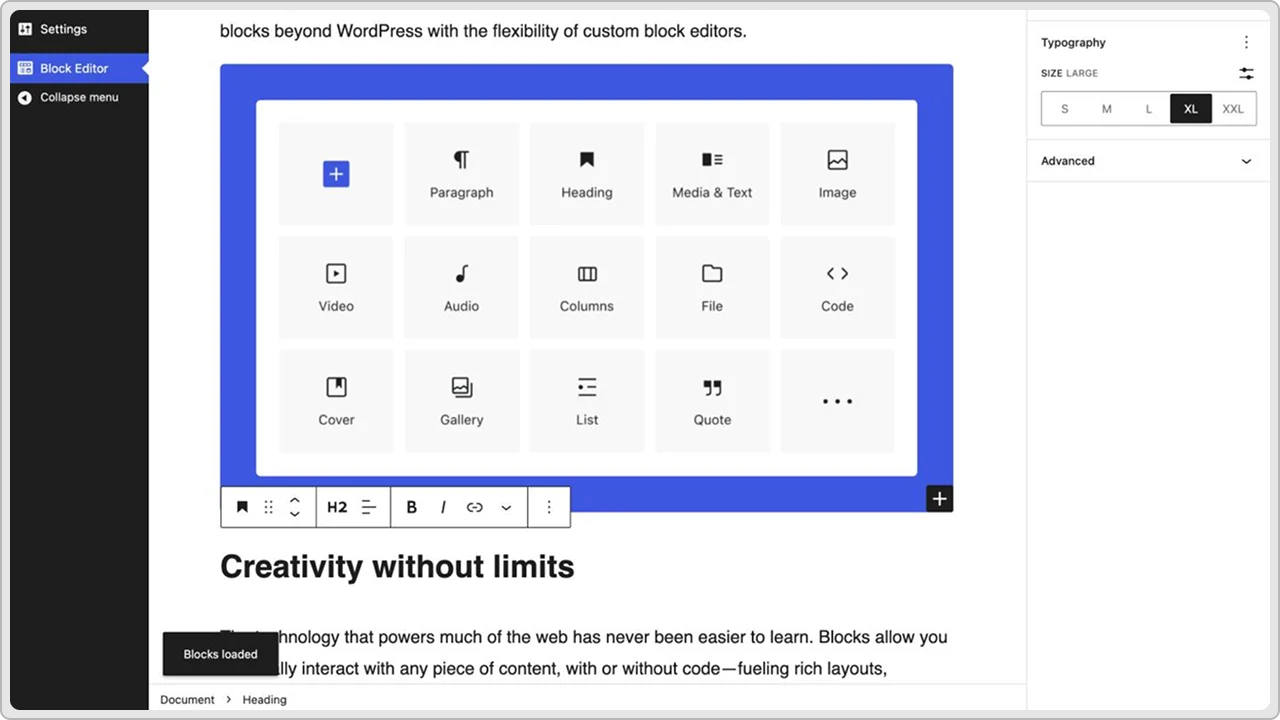
To insert content, click the plus icon in the top left corner or use the block inserter that appears in the editor. A search bar helps you quickly find the block you need. For example:
- Use a paragraph block for text.
- Use an image block to upload photos or select them from the media library.
- Use a button block for calls to action.
- Use a gallery block to create image galleries.
You can also explore the block directory for more blocks beyond the default options.
3. Work with block settings
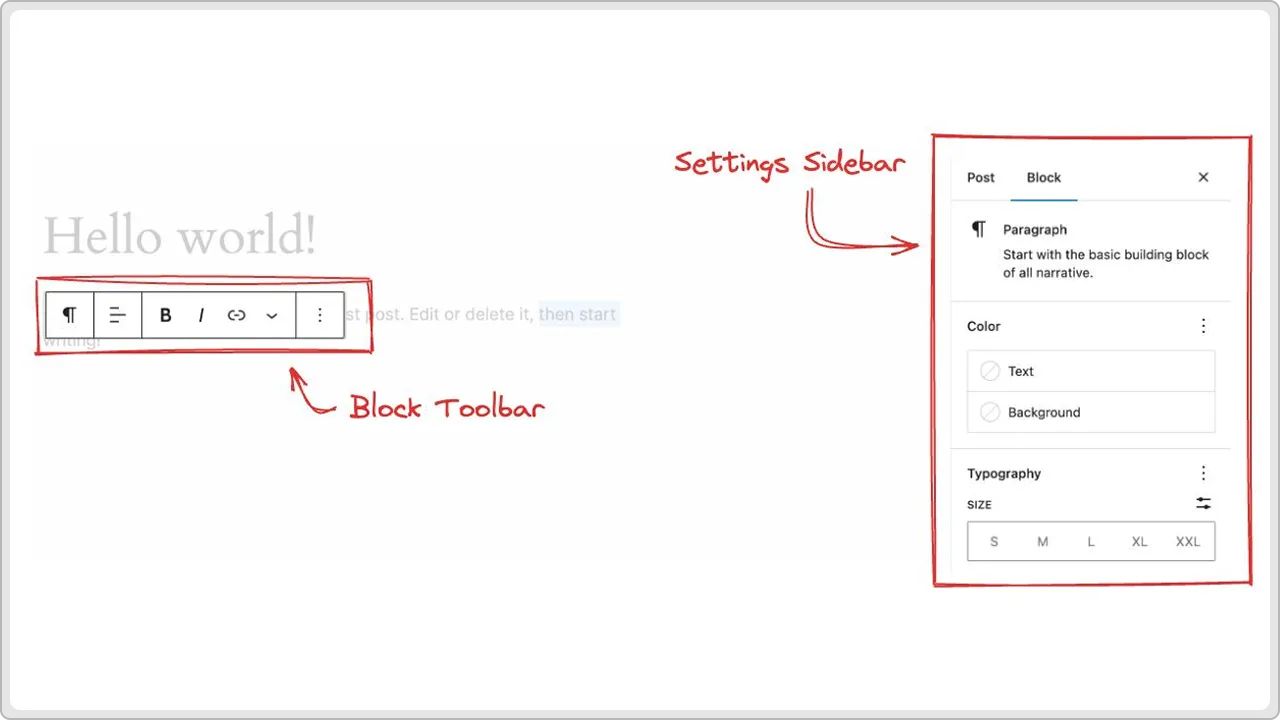
Every selected block has its own settings. You will see two places where you can edit:
- The block toolbar right above the block (for quick changes like alignment or bold text).
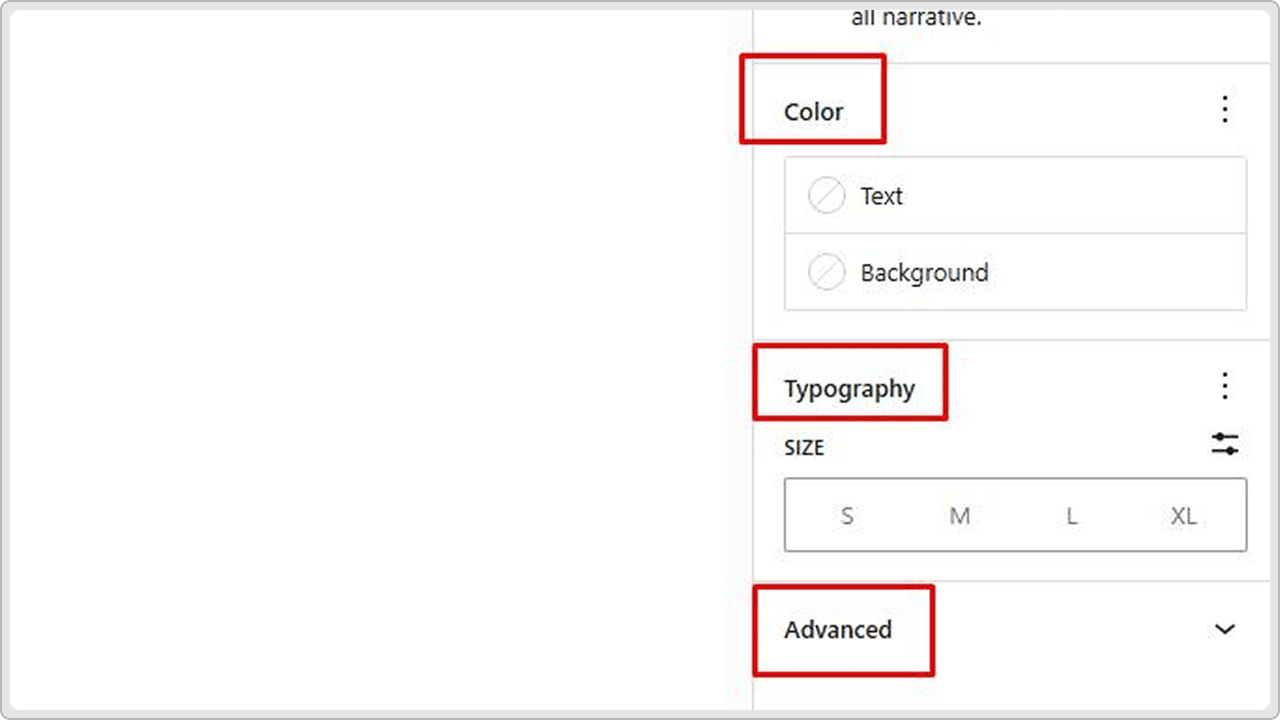
- The sidebar on the right, which shows block settings such as colors, spacing, link options, or even custom CSS.
This makes each block flexible without needing extra coding.
4. Arrange and group blocks
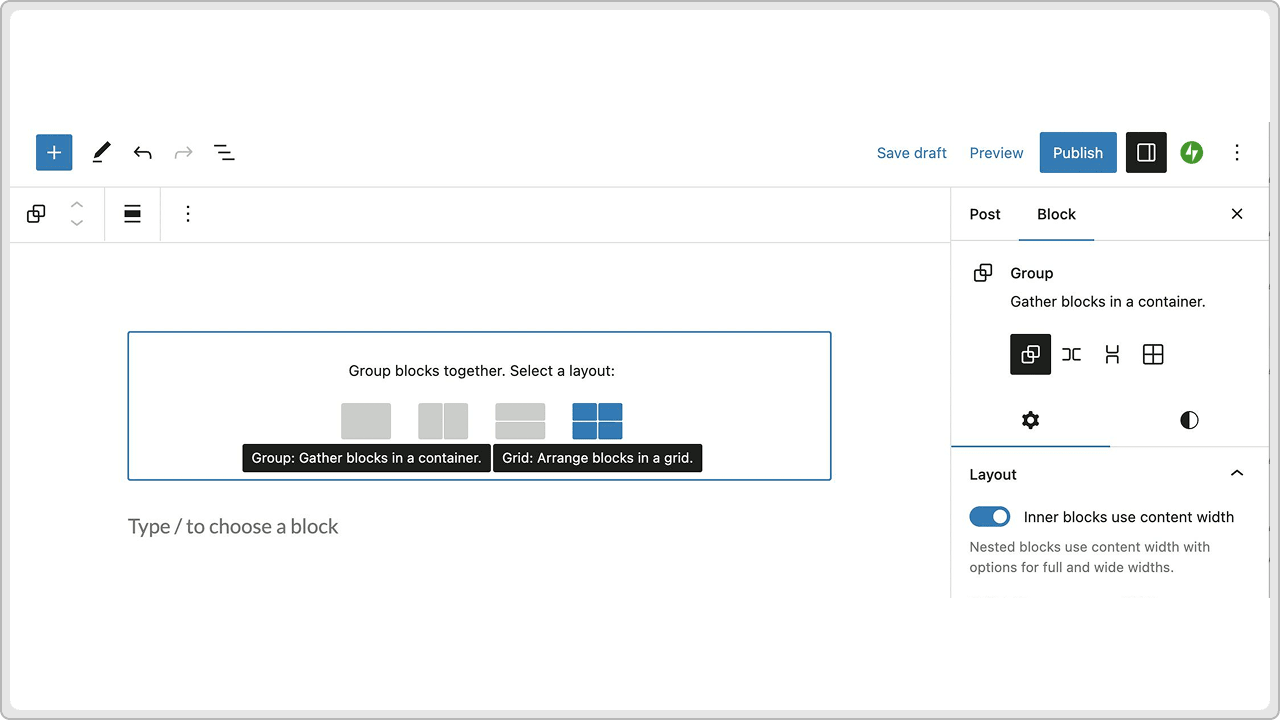
Blocks are easy to move. You can drag them up and down or use arrows to shift them. If you want to keep several blocks together, you can group multiple blocks into one section. This is useful for columns, featured sections, or content layouts that you want to move around as a single unit.
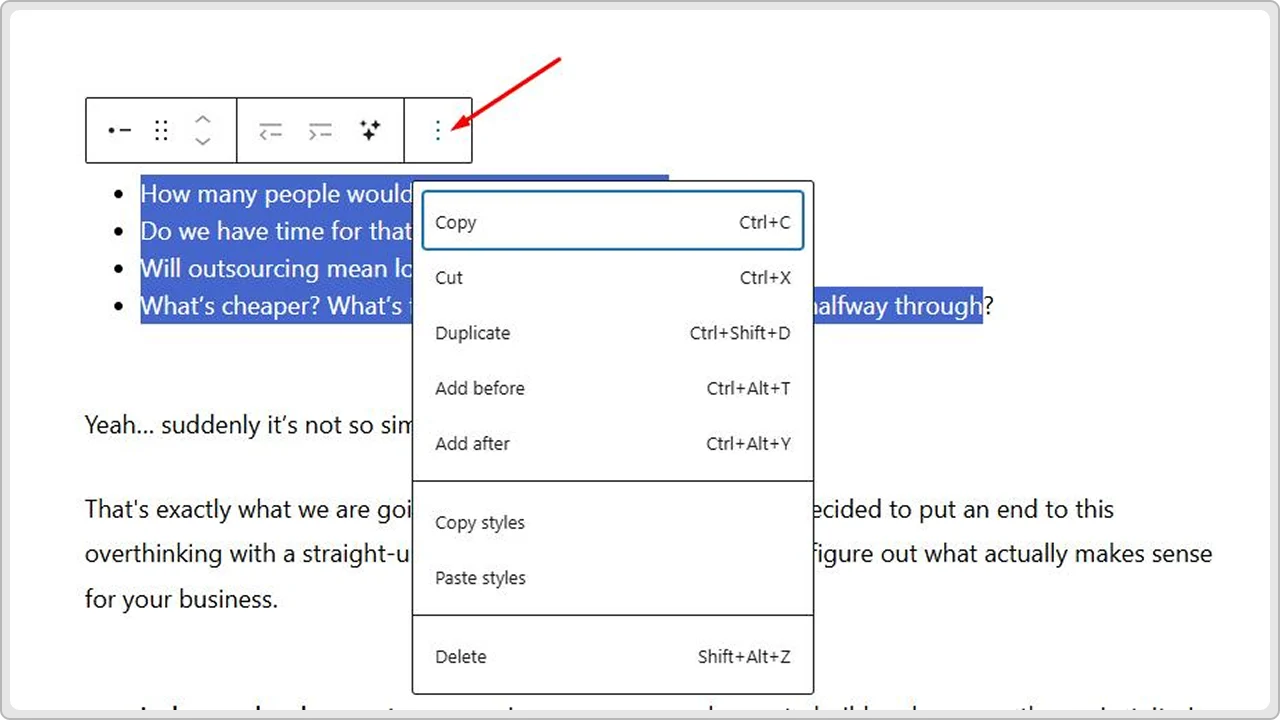
You can also select multiple blocks at once to duplicate, delete, or rearrange them quickly.
5. Use block patterns and reusable blocks
- Block patterns are ready-made layouts with multiple blocks already arranged, like headers, footers, or image grids. You can insert them with one click and then customize them with your own content.
- Reusable blocks let you save something you designed, like a pricing table or a call-to-action box, and use it across your site. If you update it once, it changes everywhere it is used.
- You can even create your own patterns for layouts you often use.
6. Switch views for more control
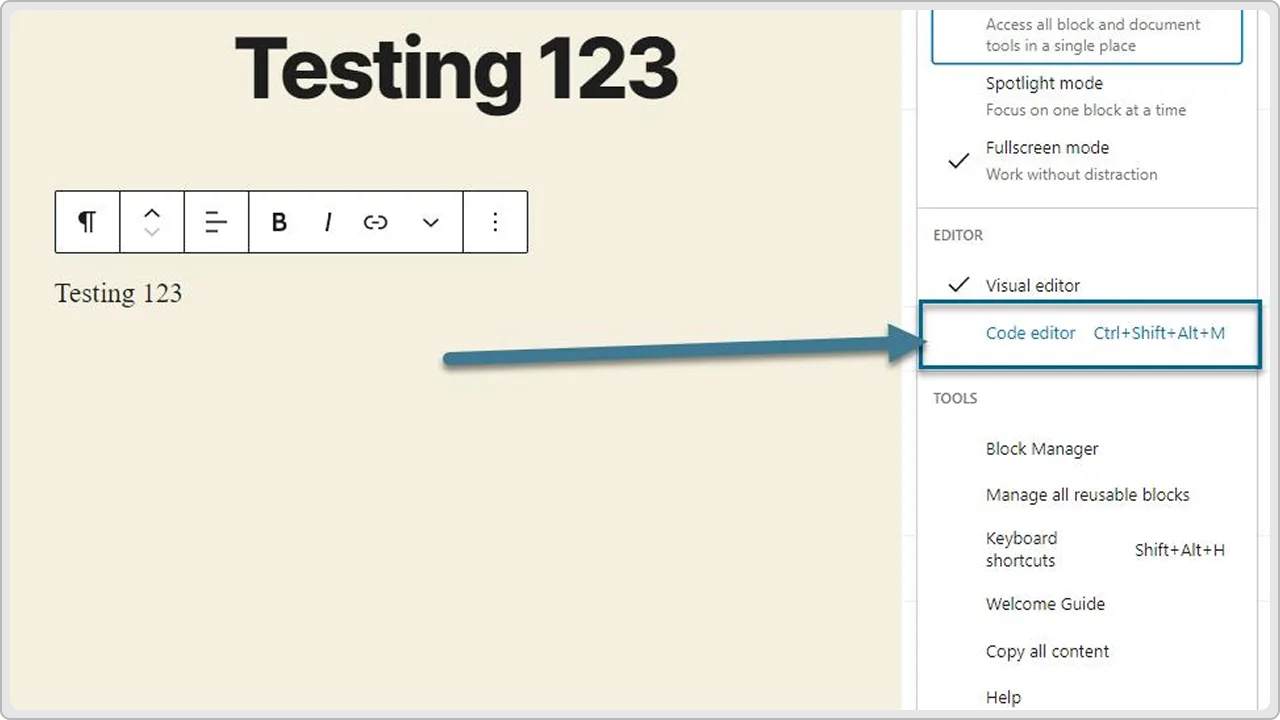
Sometimes you may want to see the code behind your blocks. The Gutenberg editor makes this simple:
- Stay in the visual editor for drag-and-drop editing.
- Switch to the code editor or HTML editor if you want to fine-tune specific parts
- Use the three vertical dots in the top right corner to open extra options, like copying, duplicating, or changing how the editor looks.
7. Design entire sections
With block themes, you are not limited to post content. The Block Editor also works in the site editor, where you can design headers, footers, landing pages, and entire sections of your site. This makes it feel closer to a WordPress page builder, but it is built right into WordPress core.
8. Preview and publish
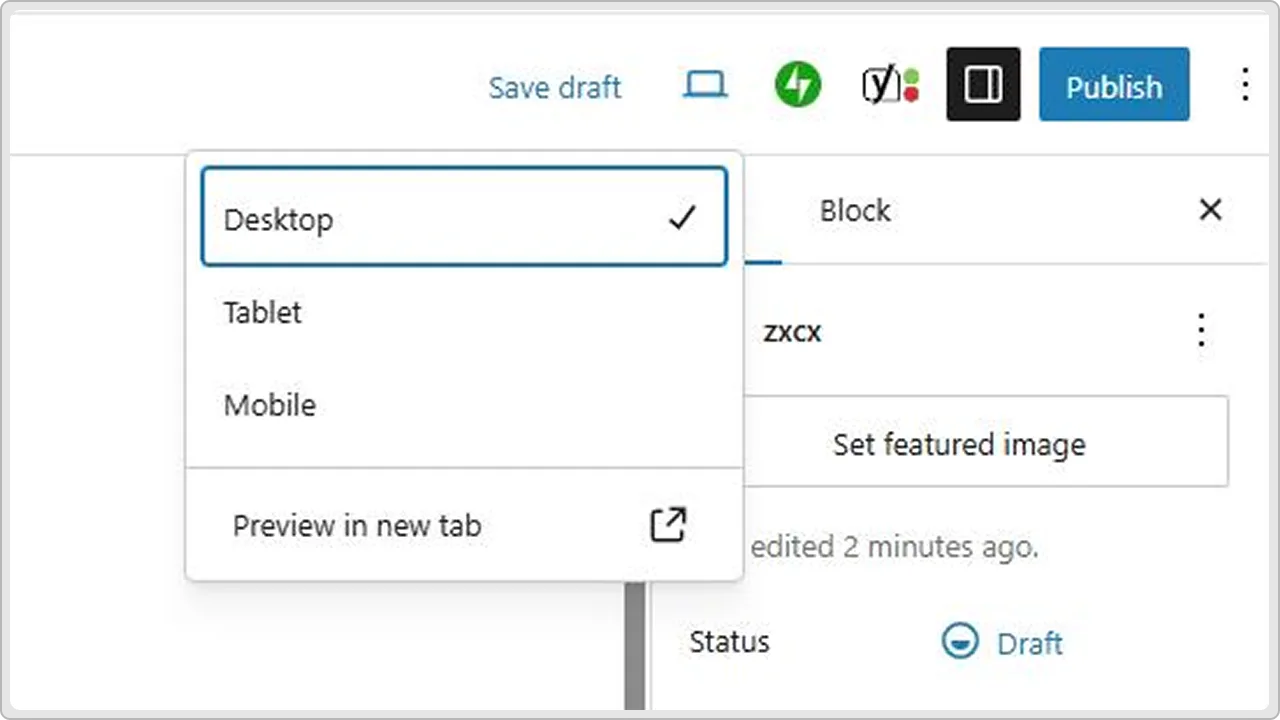
Once your content blocks are in place, preview the page to make sure everything looks right. When you are ready, click publish. In just a few minutes, you can go from a blank page to a finished layout without needing plugins or custom code.
Advanced Tips for Using the Gutenberg Block Editor
Once you understand the basics of adding and moving blocks, the Gutenberg editor starts to feel much more powerful. Here are some advanced tips that can save time, improve layouts, and give you more control over your WordPress site.
1. Insert blocks with a shortcut
Instead of opening the block inserter every time, you can type / right in the editor, followed by the block name. For example, /image instantly creates an image block, /paragraph adds a text block, and /button drops in a button block. This is a small trick, but it makes building pages a lot faster once you get used to it.
2. Drag and drop images directly
You do not always need to go through the media library. You can drag an image file from your computer and drop it straight into the editor. Gutenberg automatically creates an image block in the exact spot where you dropped the file. On Windows computers or Mac, this saves a few clicks every time you add media.
3. Use markdown-style shortcuts
If you type ### and press space, Gutenberg will instantly create a heading block (H3). Typing – followed by a space creates a list. These text shortcuts are simple but make writing content feel more like using MS Word or Google Docs, where formatting happens naturally as you type.
4. Create your own block patterns
WordPress includes built-in block patterns, which are pre-designed layouts like image galleries, columns, or headers. But you can also create pattern layouts of your own. For example, if you often design a section with two columns and a button, you can save it as a pattern. Next time, you can insert it in a click instead of rebuilding it from scratch.
5. Save time with reusable blocks
Reusable blocks are different from patterns. They are best for content you want to use across your site and keep synced. For example, if you have a call-to-action banner or a newsletter signup box, you can save it as a reusable block. When you edit it once, it updates everywhere it appears. This is useful for landing pages or sections you want to keep consistent.
6. Style blocks individually
Every selected block has its own settings in the sidebar. Beyond colors and alignment, there is often an option to add a custom CSS class. This means you can style a specific block with your own CSS while leaving the rest of your site untouched. It is a powerful way to control design without heavy coding.
7. Group blocks for cleaner layouts
When building entire sections, you do not need to move blocks one by one. Instead, you can group multiple blocks together. Once grouped, you can give the section a background color, adjust spacing, or set it to full width. This makes your layout cleaner and easier to manage, especially if you are building landing pages with many elements.
8. Explore the block directory
The Block Editor comes with many content blocks by default, but if you need more, the block directory is built right into WordPress. You can search and install new blocks from the editor itself. For example, you can add advanced sliders, forms, or pricing tables without leaving the editor. This feels like adding “plugins,” but they are lighter and specifically designed to work with Gutenberg.
9. Master the toolbar and settings
Above every block is the block toolbar with quick formatting tools. For more control, check the three vertical dots in the top right corner of the screen. This menu lets you switch between the visual editor, HTML editor, or code editor, and adjust how the editor works. Learning these settings will make editing smoother and faster.
Conclusion
Gutenberg has changed WordPress in a big way. Building with blocks is very different from the old editor, but it also makes creating pages more flexible and less dependent on extra tools.
Once you get used to it, the Block Editor feels straightforward. You can write, design, and arrange content in one place, without switching between plugins or custom code.
It may not be perfect, but it is now the editor at the heart of WordPress, and it is here to stay.