Reviews on


WordPress 6.9 is here with some cool improvements. The new additions include new blocks, smoother editing, better collaboration tools, and performance boosts.
In this post, we’ll walk you through what’s new in WordPress 6.9 and how it could enhance your site. Whether you run a simple blog, manage a business site, or build sites for clients (like we do at cmsMinds), you’ll find something valuable.
⏰ 60-Second Summary
- WordPress 6.9 is the final release of 2025, and it brings some interactive elements to the block editor and site editor, making daily website work easier.
- New built-in blocks like the Accordion block, time to read block, math block, and terms query block reduce the need for extra plugins.
- Editing and teamwork get faster with block-level notes, command palette, hide blocks option, and better template management.
- Performance enhancements help websites load faster and improve the admin experience, which is great for both site owners and search engines.
- You can upgrade safely by testing in a staging environment, updating plugins, and then moving the changes to your live site.
WordPress 6.9 Release
WordPress released its second major update of 2025 on 2nd December. This is the last update for the year 2025. The sole purpose of this release is to improve the editing experience, make collaboration easier, and boost overall site performance.
What’s New in WordPress 6.9?
WordPress 6.9 version brings some wonderful enhancements that make daily work inside the editor a lot easier. Instead of big flashy features, this update focuses more on things like writing, editing, styling pages, and working with teammates.
Now, let’s take a look at the main changes at a deeper level.
1. Block Level Notes for Teamwork
Block level notes are one of the most significant improvements in WordPress 6.9. Users can easily leave comments on specific blocks inside the site editor, just like comments in Google Docs.
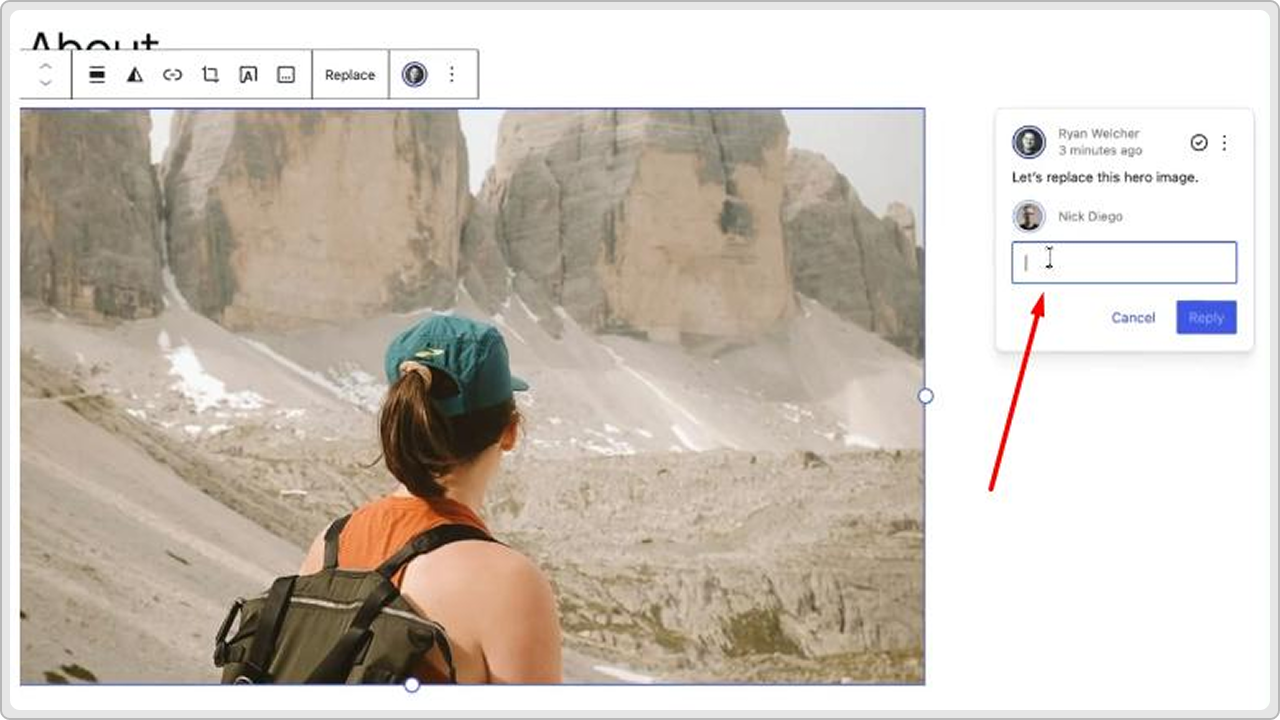
You don’t have to send screenshots or even share long messages like “check the third paragraph under the banner.” Instead, you can just comment right there, and people who have access to it will directly get an email whenever new comments come in.
Here’ how you can do it:
- Select a block while editing a page or post.
- Open the Notes option from the sidebar or toolbar.
- Type your comment and post it.
- Your teammate can reply, edit, or mark the note as resolved.
Now, each and every note that you comment on will stay attached to that block, even if you move it up or down the page. So that means the feedback doesn’t get lost even when you change the layout.
This is super helpful for:
- Writers and editors who need to review the content, headlines, CTAs, etc.
- Designers who want to suggest spacing, colors, or layout changes.
- Clients who want to request small edits without touching the content.
This new feature helps reduce confusion, repeated work, and long email threads. It also makes the entire review process faster, which is a huge win for teams that publish frequently.
2. New Built-in Blocks
Another feature that WordPress 6.9 brings is built-in blocks. Earlier, these blocks were added through plugins, but now they are available inside WordPress by default. This makes content design far easier and minimizes the need for 3rd-party add-ons.
The newly built-in blocks include:
- Accordion Block – Ideal for FAQs, collapsible sections, or even long guides. This new Accordion block helps keep pages clean and easy to scan.
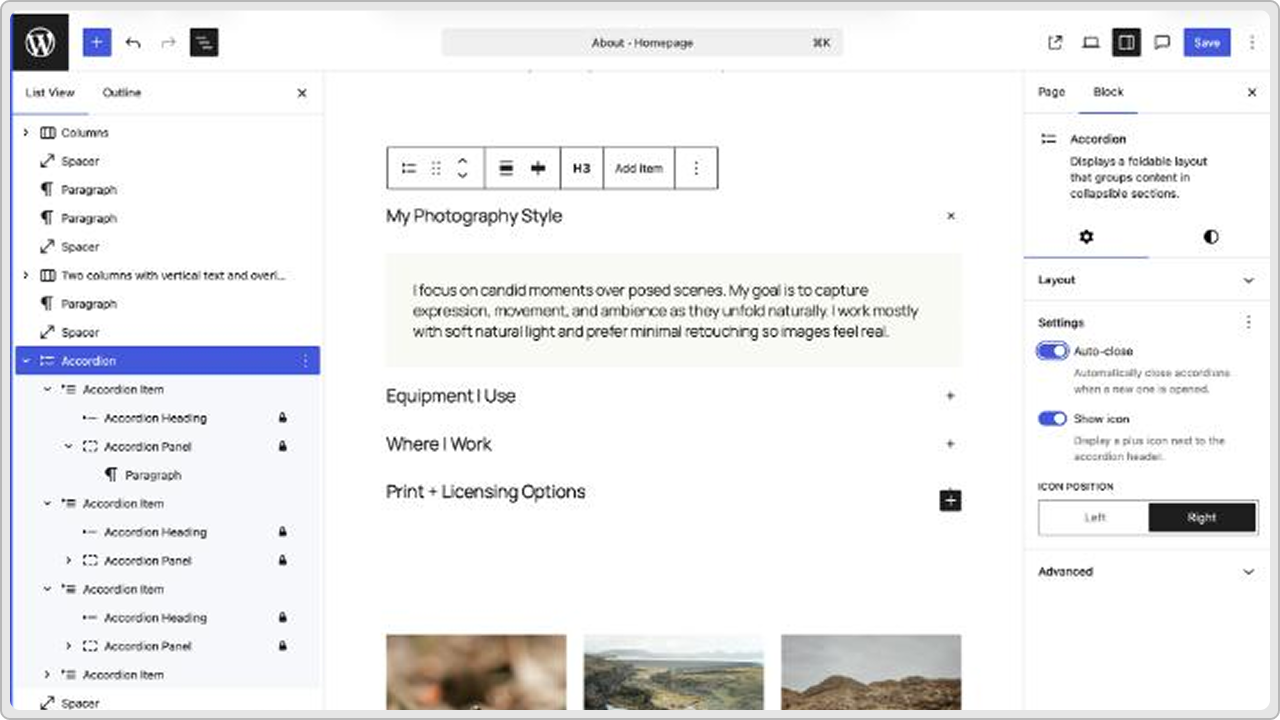
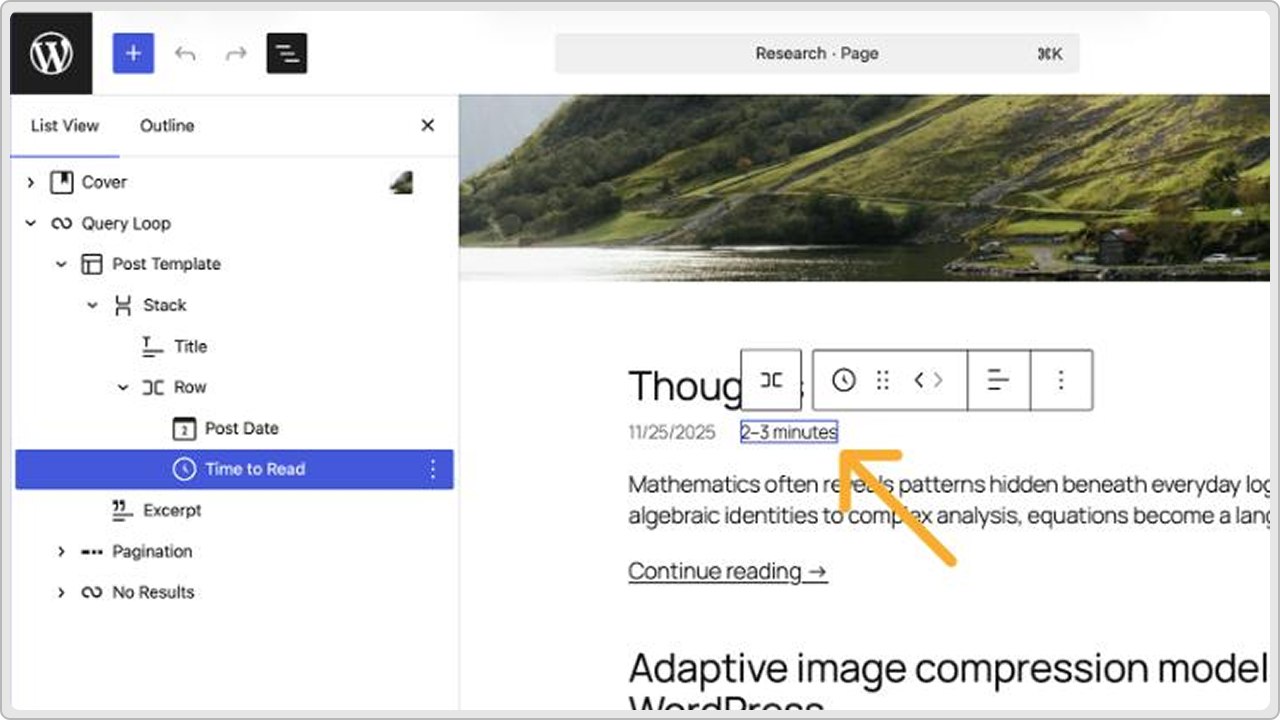
- Time to Read Block – Shows estimated reading time to read the article. It sets the right expectations for readers and works really well for blogs and long-form content.
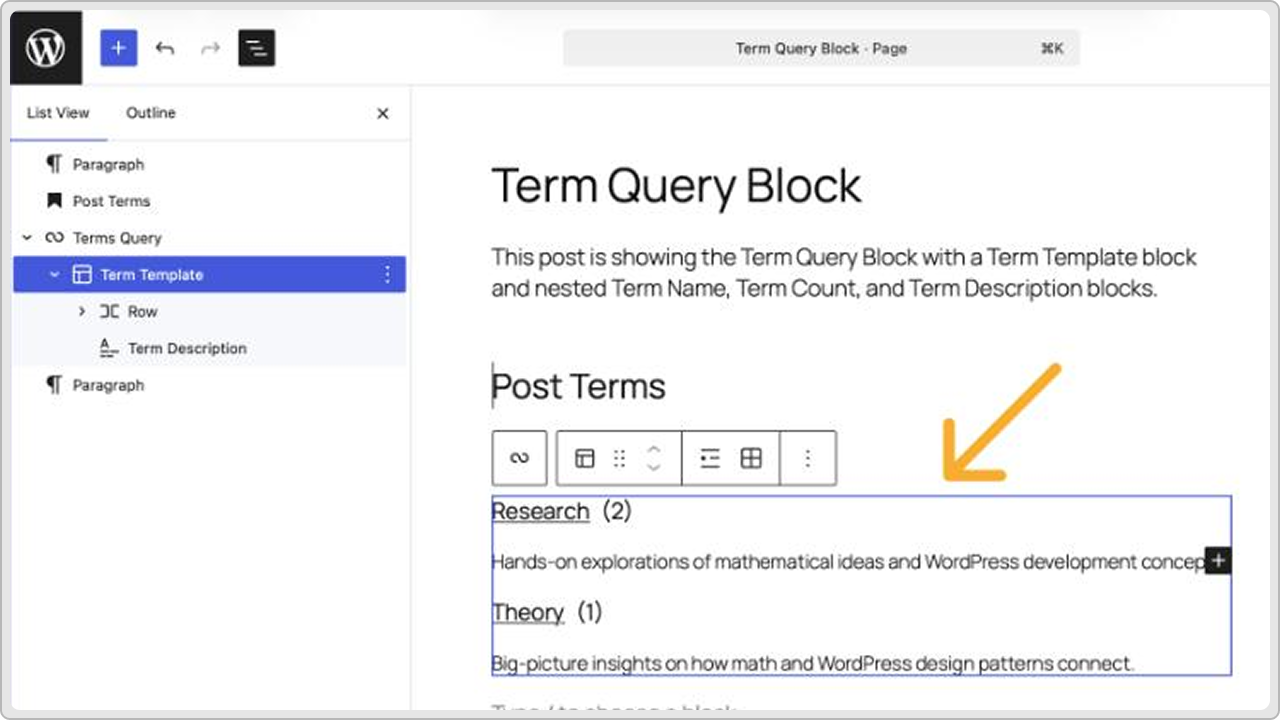
- Terms Query Block – Lets you display posts based on categories, tags, or even custom taxonomies. It’s useful for blogs, directories, resource pages, and magazine-style layouts.
All of these blocks give you more control while building pages and posts. Now that they’re a part of WordPress core, you don’t need any extra plugins to add these features, which again helps keep your website lighter and easier to maintain.
3. Hide Blocks Without Deleting Them
You can now easily hide a block instead of removing it from the page. Although it’s a small change, it’s very helpful in real use. Let’s say you want to take a section off the page for a while. You can simply switch it off and bring it back later with just one click.
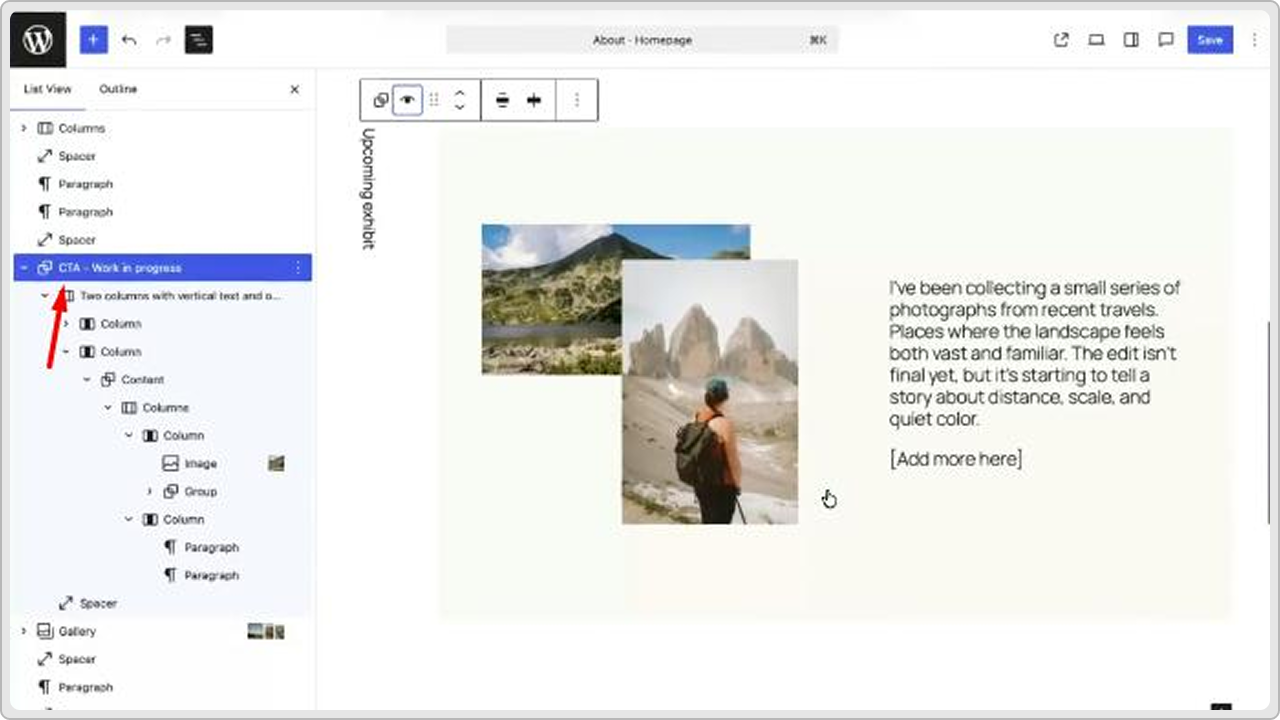
A few situations in which this feature is helpful:
- Seasonal banners or festival offers that you want to use again later.
- Promo sections that you’re not ready to publish yet for some reason.
- New layouts you’re testing before going live.
- Content that needs approval before it appears on the site.
When you hide a block, it’ll stay that way in the site editor as long as you want. None of your website visitors can see it. You can update it, move it, or even keep it for later without losing the content. This will save you a ton of time as you don’t have to rebuild the same section again in the future.
4. Smoother Drag and Drop Editing
Editing layouts in WordPress 6.9 is going to feel much better thanks to the new improvements in drag and drop controls.
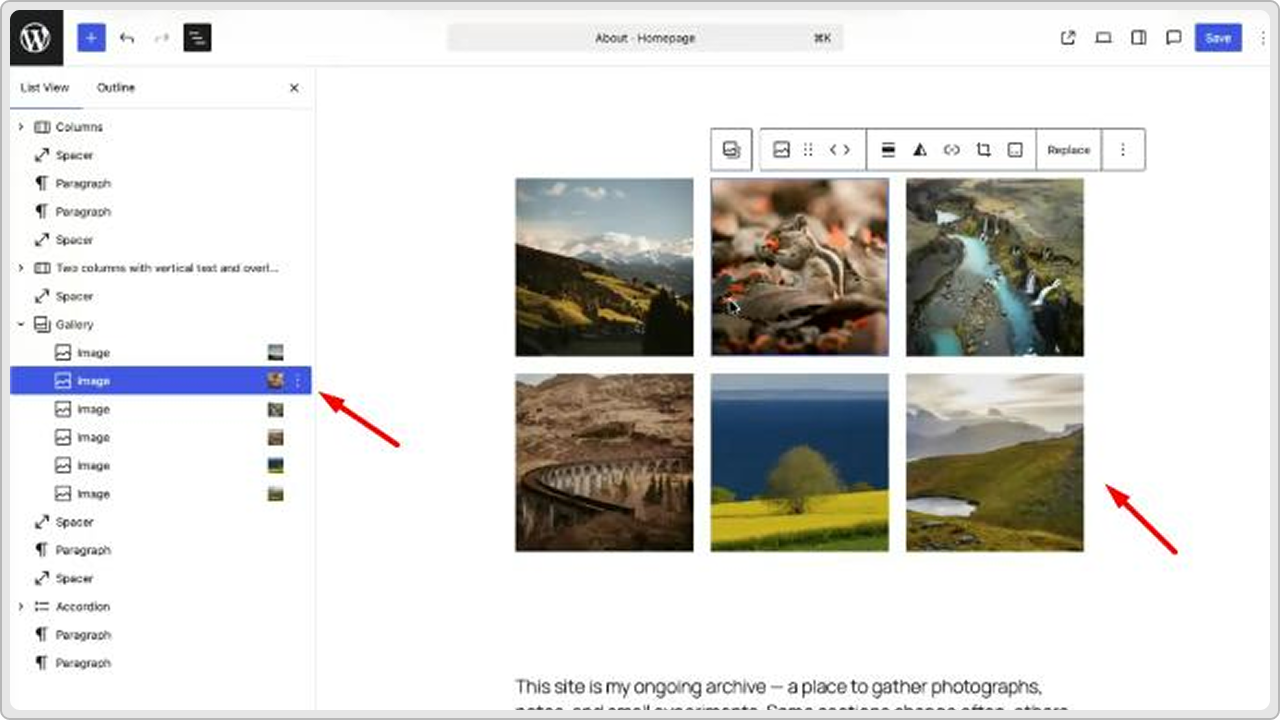
When you move a block, the site editor will now show a clearer visual guide of where the block will land. This improvement drastically reduces mistakes and makes rearranging sections faster.
This is helpful for users who often:
- Adjust layout oder.
- Move headers or banners around the page.
- Reposition text, images, or CTAs during design changes.
You no longer have to manually drop a block and then adjust its position every single time. The new drag-and-drop feature feels more controlled and easier to manage, especially for long pages with too many sections.
Yes, it’s a small change, but it improves the editing experience in a noticeable way.
5. Performance Enhancements
The new update in WordPress 6.9 also includes better speed and performance. This makes websites load faster and feel lighter to work with. Compared to earlier versions of WordPress, the new 6.9 reduces how much CSS and JavaScript are loaded on the page, which results in quicker page loading.
This update changes the whole game for site owners.
- Pages open faster for visitors.
- The backend responds more smoothly while editing.
- Less strain on hosting resources, especially on shared hosting plans.
These new performance upgrades also help with SEO (Search Engine Optimization) as search engines love websites that load quickly and provide a great user experience.
6. Math Block
The Math block is a new addition in WordPress 6.9 that lets you add mathematical formulas directly inside your content. This feature supports LaTeX, so you no longer need to download separate plugins to display formulas.
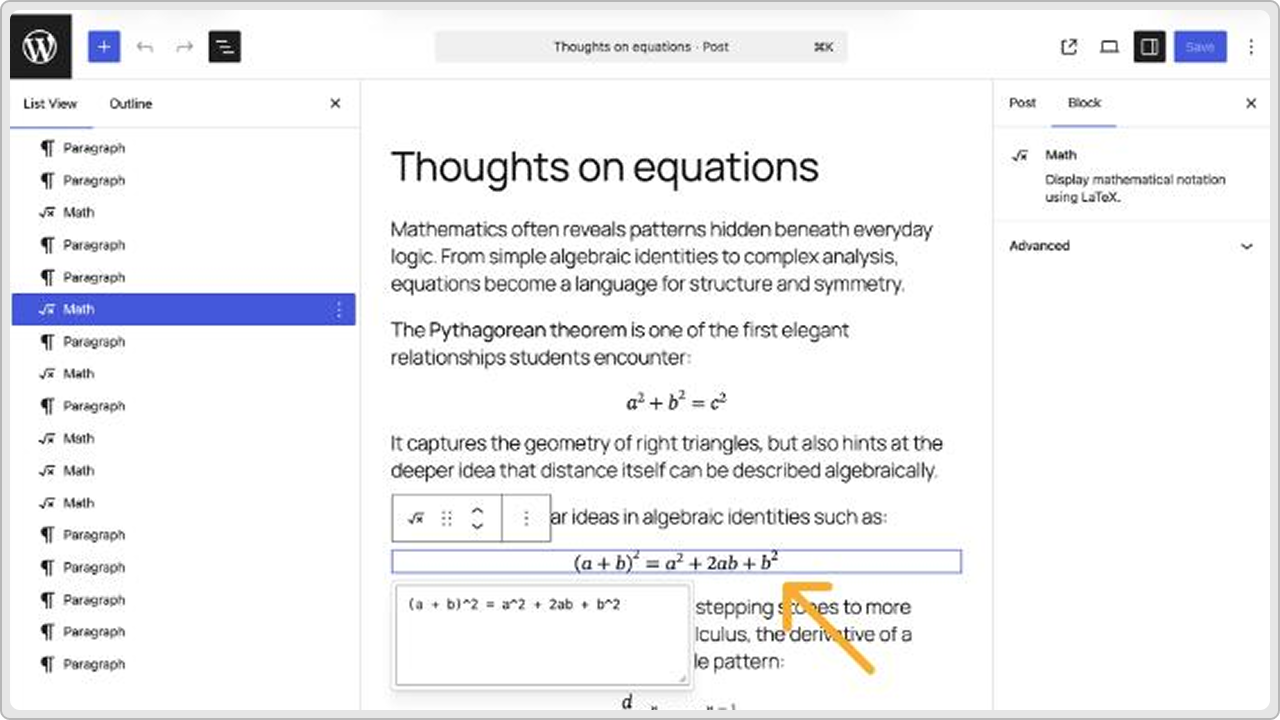
This block is helpful for:
- Educational websites and posts
- Science and engineering blogs
- Research papers and technical articles
- Online learning platforms
All you need to do is type or paste a formula into the block, and WordPress will format it automatically. This makes it much easier to share lessons, tutorials, calculations, and academic content in a clean and readable way.
7. Comment Count and Comment Link
This new improvement introduces two new blocks for websites that use comments actively. One is Comment Count, and the other is Comment Link.
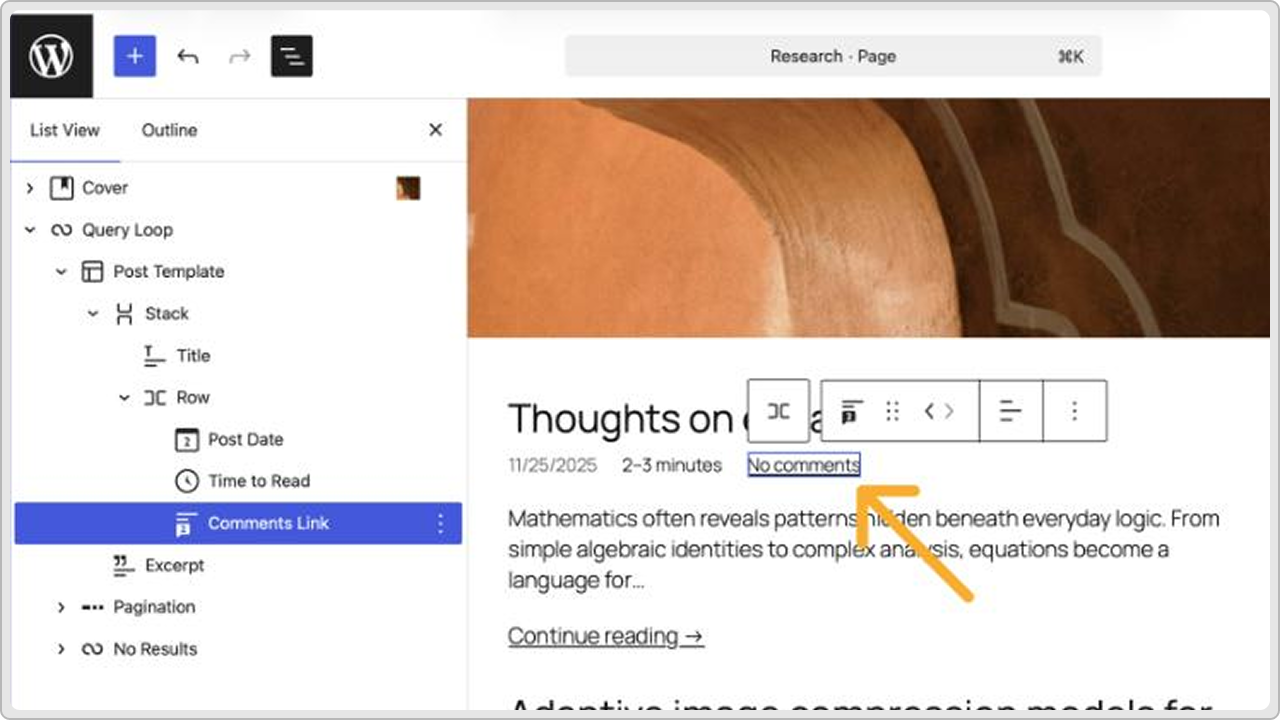
The Comment Count block shows how many comments a post has, while the Comment Link block lets readers jump directly to the comments section.
Both of these new blocks are highly helpful for blogs, news websites, and community-driven platforms where discussions matter. They help highlight user engagement and make it easier for website visitors to take part in conversations.
8. Reusable Layouts with Safe Drafts and Flexible Templates
WordPress 6.9 brings multiple features that help you build websites faster, especially if you work on multiple sites or repeat the same layouts more often.
This improvement is about saving time and reducing the need to rebuild sections from scratch.
1. Starter Pattern Modal Everywhere
The starter pattern modal now shows up for all post types. Earlier, it was only available for pages.
Now, you can simply insert ready-made layouts across different types of content. This is especially useful if you’re working with super complex designs or publishing many pages that need a similar structure.
2. Fit Text (Stretchy Text)
Paragraph and Heading blocks now come with a Fit Text option. What it does is that it automatically adjusts the size of the text to match the width of the container.
With this new feature, you can create bold and attention-grabbing titles without writing custom CSS. Plus, it keeps typography consistent on every screen size.
3. Gallery Block Aspect Ratios and Cover Block Posters
The Gallery block now lets you set a single aspect ratio for all images. Just a single click in the sidebar can make your WordPress site gallery look neat and well-balanced.
You don’t need image edits or even CSS to fix uneven layouts.
Also, the Cover block now supports poster images for video backgrounds. Let’s say some of your visitors who have a slow internet connection will now be able to see the poster image while the video loads, which drastically improves the viewing experience.
9. Dashboard-wide Command Palette Everywhere
Although the Command palette existed in earlier versions, WordPress made it better in the latest 6.9 version. This upgraded feature is now available across the WordPress Dashboard, not just in the site editor.
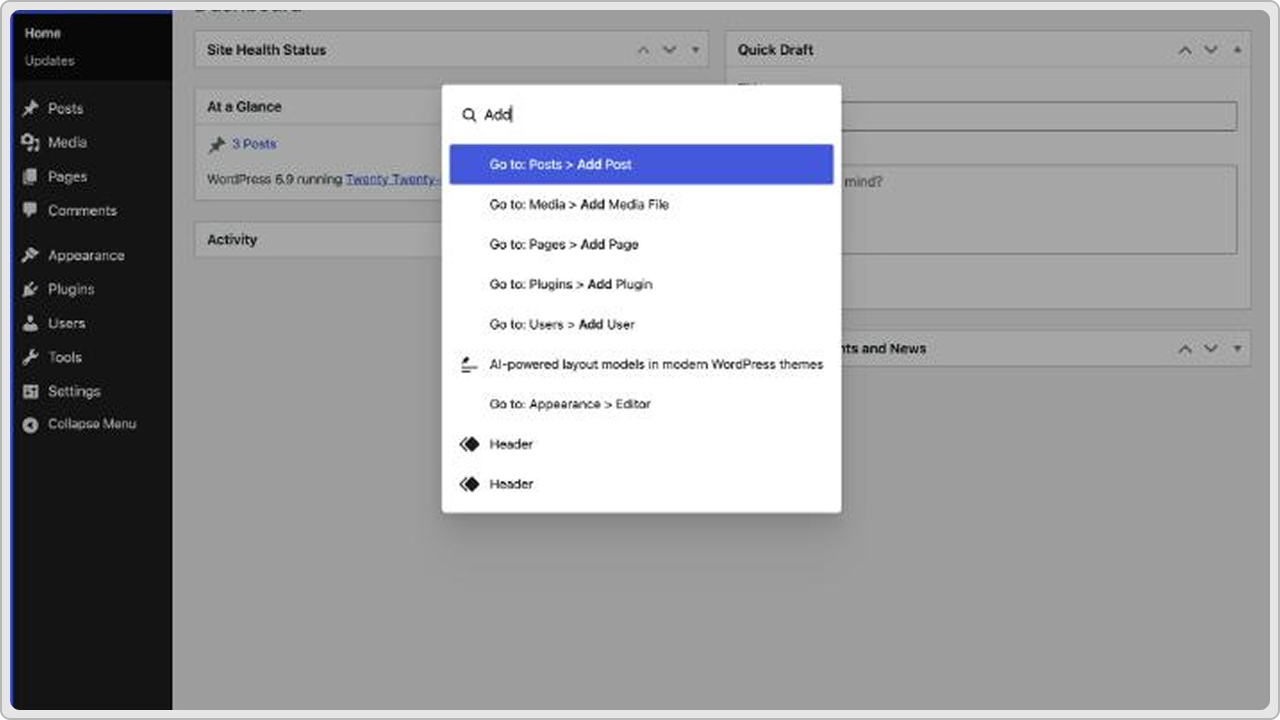
Instead of clicking through multiple menus to reach a page or setting, you can simply press Ctrl or Cmd + K on any screen and type what you need. You can easily jump to Posts, Pages, Media, Settings, or even run actions right from the search bar.
It is very helpful for users who work inside WordPress every day because it saves time and reduces a lot of repeated clicking.
Developers can also create their own custom commands for the Command Palette. This allows users to access their most-used features even faster without searching through menus.
Should You Upgrade to WordPress 6.9 Right Now?
Yes, you can upgrade to WordPress 6.9, but do it carefully. The update is good and stable, but it is always safer to check a few things before updating your live website.
Here’s how you can do it:
- Test the update on a staging site first
This helps you see if everything works fine with your current theme and plugins. - Make sure your plugins are updated
If some plugins are very old or not well-maintained, they might not work with WordPress 6.9. - Take a full backup before updating
In case something goes wrong, you can restore your site in minutes.
If your WordPress site is running on a modern theme, then the upgrade should be smooth. Right after upgrading to the new version, you’ll notice faster loading speed, better performance, and fewer plugins needed for basic features.
Conclusion
WordPress 6.9 has meaningful upgrades that address real user needs. It makes editing easier, improves teamwork, adds useful built-in blocks like the Accordion block and time to read block, and speeds up both the front end and the admin area.
These changes may not look huge at first, but they definitely make a big difference in day-to-day website work inside the block editor and site editor.
If you plan to update, just do it safely with basic checks like backups and staging. Once you move to the new version, you will enjoy a smoother and more efficient experience along with better performance.