Reviews on


Sometimes you just need a copy of a page you’ve already built in WordPress. Maybe it’s a product page you want to reuse, a new version of a landing page, or a simple layout that’s just too good and you don’t want to start over.
We all have been there.
Now, instead of rebuilding it from scratch, you can easily duplicate pages and make your edits in a few minutes.
This process is quick, simple, and helps you keep things consistent across your site.
But before we dive into the steps, let’s look at why duplicating a page in WordPress can be so useful other than for obvious reasons.
- Duplicating a WordPress page will save a lot of time and helps you maintain consistency across the website.
- You can duplicate a page either by using a plugin, manually copying content, or with built-in page builder features.
- Plugins are the quickest way to create a duplicate draft in just a few clicks.
- Manual duplication works well when you prefer fewer plugins or duplicate a page occasionally.
- Page builders like Elementor, Divi, and WPBakery make duplicating layouts easy through templates and saved designs.
Why You Might Want to Duplicate a Page in WordPress
Duplicating a page isn’t just about saving time. Yes, it does save time. But sometimes, it’s about working smarter.
Let’s say you’re creating another product page, testing a new layout, or even updating content without touching the live WordPress site. In all these cases, just think how much having a copy ready makes things a lot easier and, importantly, faster.
A few instances when it really helps:
- You’re creating similar pages and don’t want to rebuild everything from scratch.
- You want to experiment with different layouts, headlines, or designs.
- You need a safe draft to make edits before publishing.
- You prefer consistency across all your pages without extra effort.
It’s a small duplication feature, but once you start using it, you’ll wonder how you ever managed without it.
cmsMinds can help you improve layouts, speed, and user experience so your store performs at its best.
3 Methods to Duplicate a Page in WordPress
Now that we know why duplicating a page can be so useful, let’s see how you can actually do it. The good part is, WordPress gives you a few simple ways to duplicate a page.
First, you can use a plugin to get it done in a few clicks, or you can do it manually if you prefer to avoid adding extra tools.
Let’s start with the easiest and most popular method: using a plugin.
Method 1: Duplicate a Page Using a Plugin
If you’re looking for the quickest and most beginner-friendly way to duplicate a page in WordPress, it is by using a plugin.
It efficiently handles everything for you, so you don’t have to copy and paste anything manually.
Here’s how you can do it step by step:
Step 1: Install and Activate the Plugin
- Go to your WordPress dashboard.
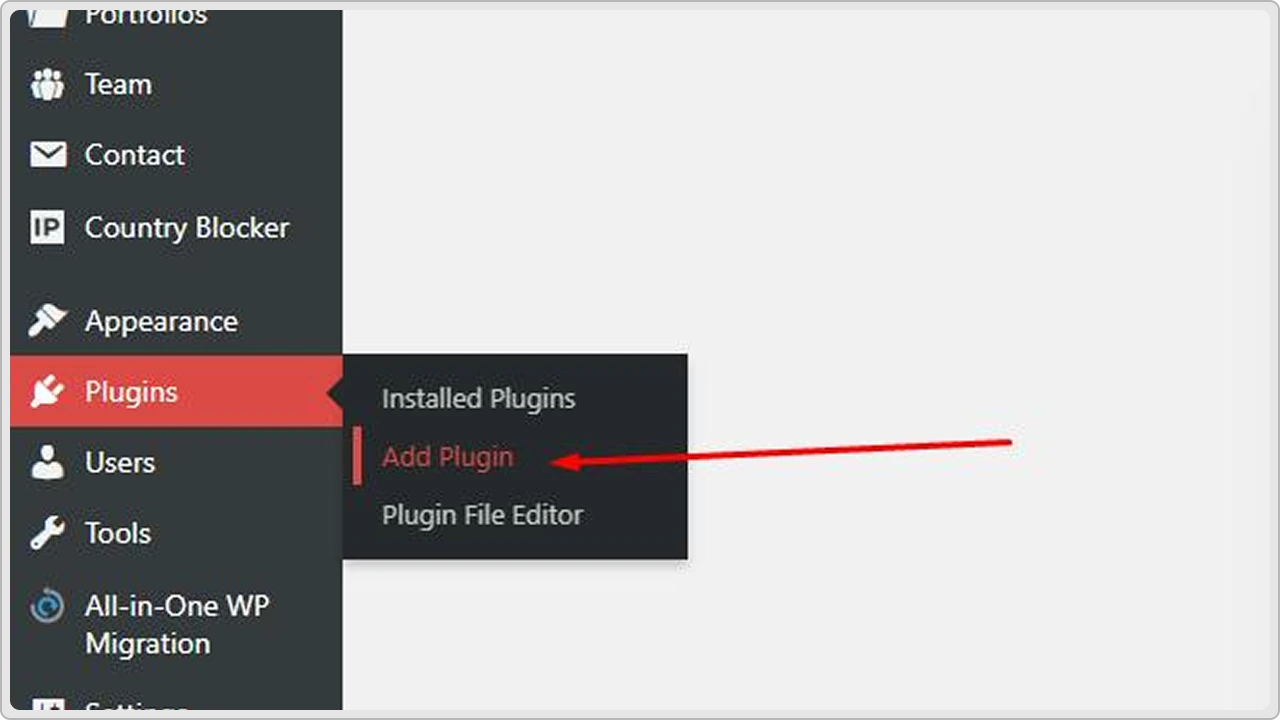
- Click on Plugins → Add New.
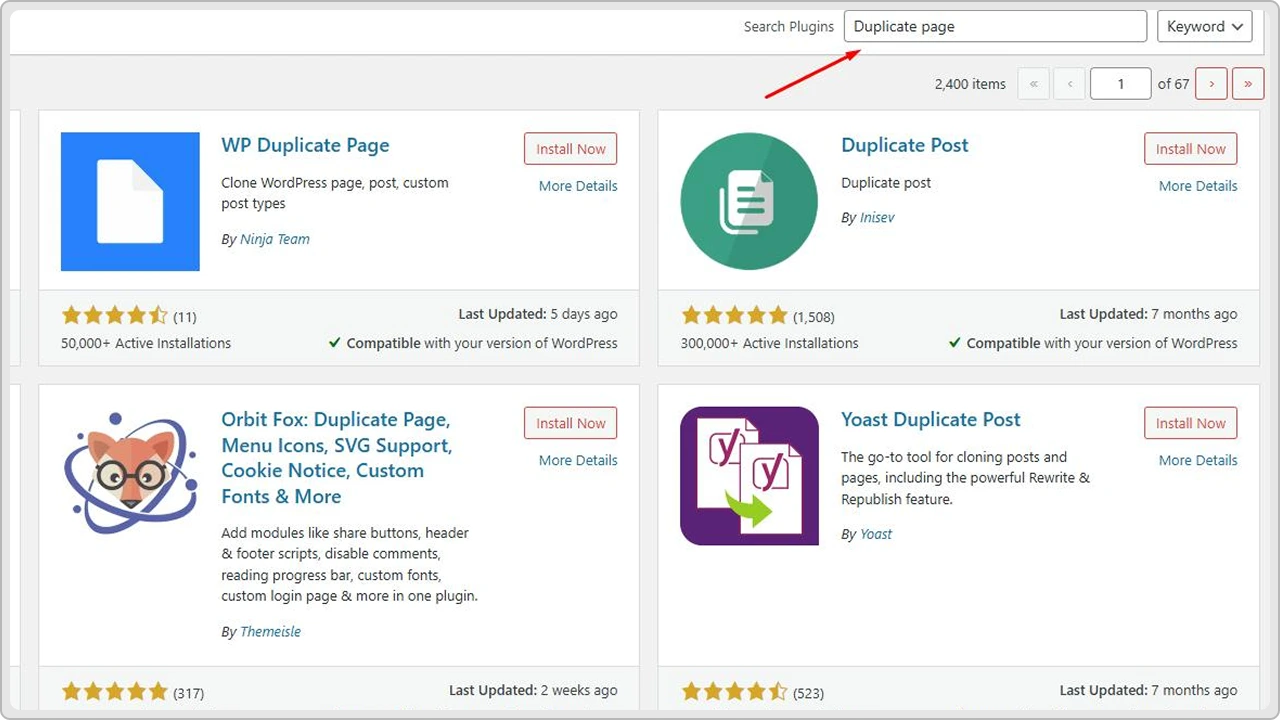
- In the search bar, type “Duplicate Page.”
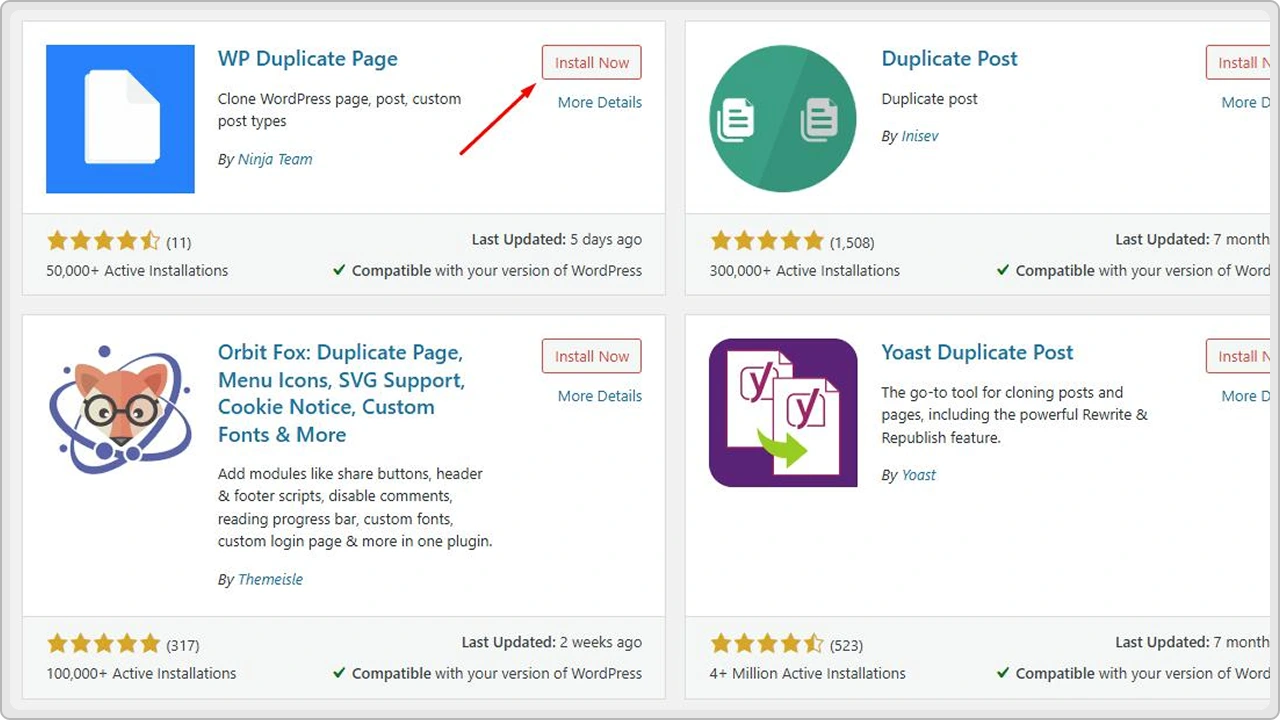
- Click Install Now and then Activate.
Step 2: Configure the Plugin Settings
Once the plugin is active, go to Settings → Duplicate Page.
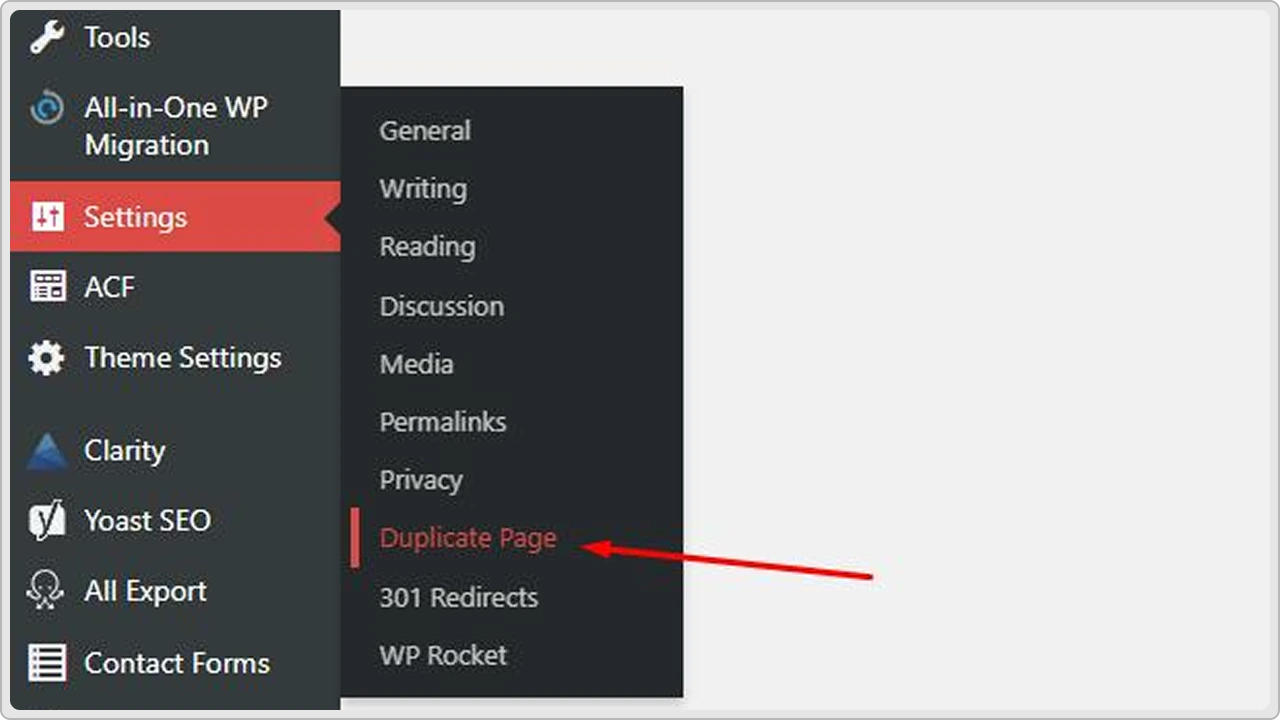
Here, you can customize a few options like:
- Which user roles can duplicate pages.
- The post status of the copied page (for example, Draft or Published).
- The page where you’ll be redirected after duplication.
Step 3: Duplicate the Page
- Go to Pages → All Pages.
- Hover over the page you want to copy.
- Click Duplicate This.
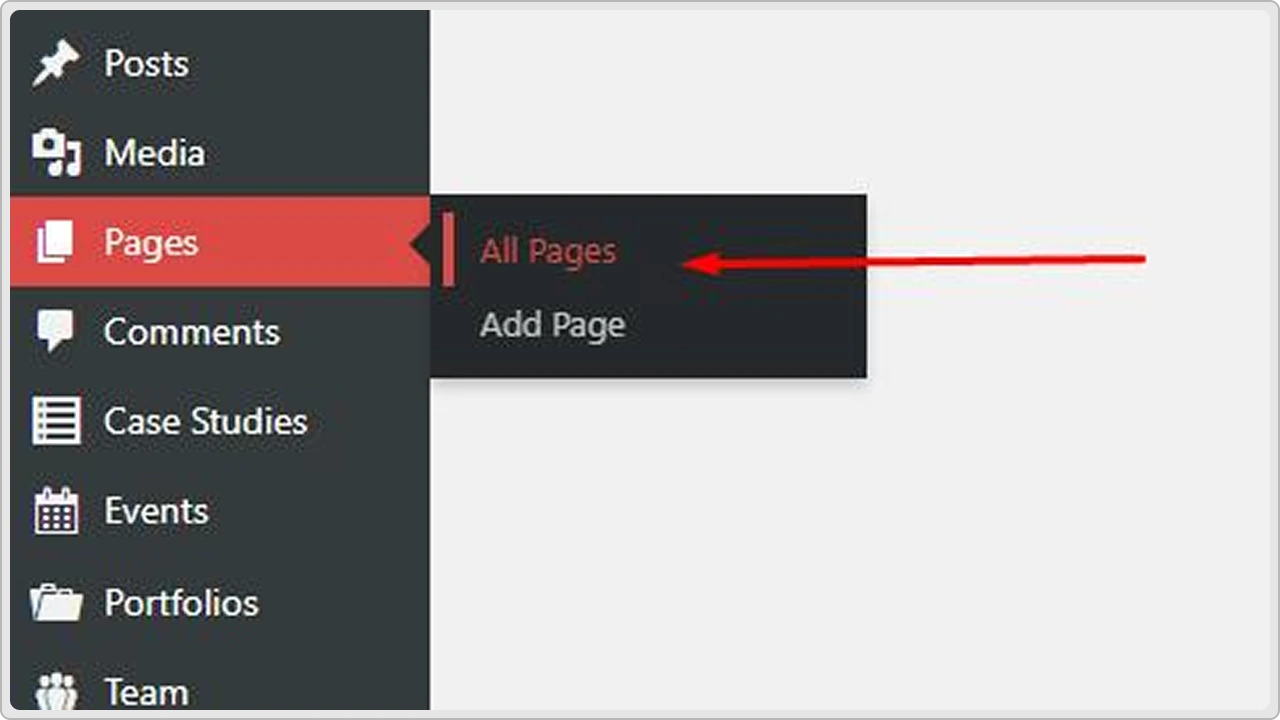
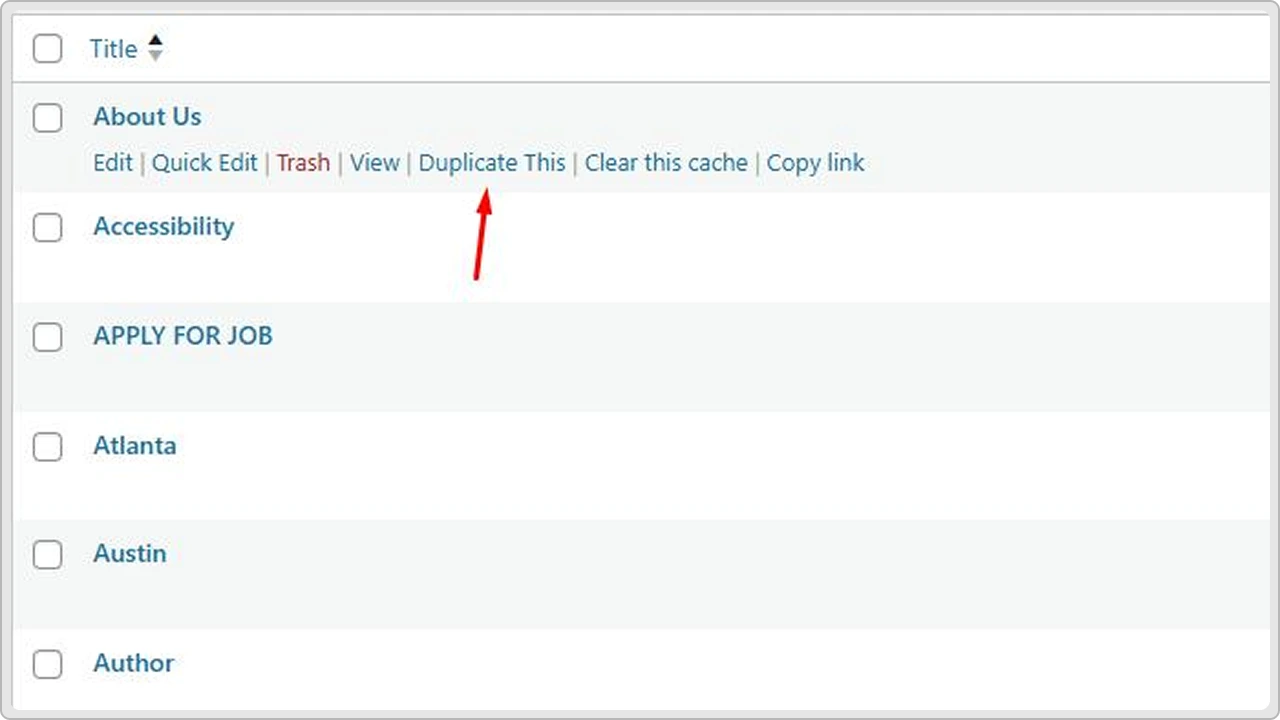
You’ll instantly see a duplicate version appear as a draft. You can now open it, make changes, and publish it when you’re ready.
Using a plugin like this saves a lot of time, especially if you work more often with similar page layouts or want to test variations without touching the original version.
Method 2: Duplicate a Page Manually
If you don’t want to install another WordPress plugin, that’s fine, I understand. Not everybody is a fan of plugins.
That doesn’t mean there’s no other way. You can still duplicate a page manually. Of course, it takes a few extra steps, but it’s simple enough once you know how.
This method works best when you only need to duplicate a few pages or if you prefer keeping your WordPress setup simple without additional plugins.
Let’s take a look at the following steps:
Step 1: Open the Page You Want to Copy
Go to your WordPress dashboard and open the page you want to duplicate.
- If you’re using the Gutenberg editor, click on the three dots in the top-right corner and select Copy All Content.
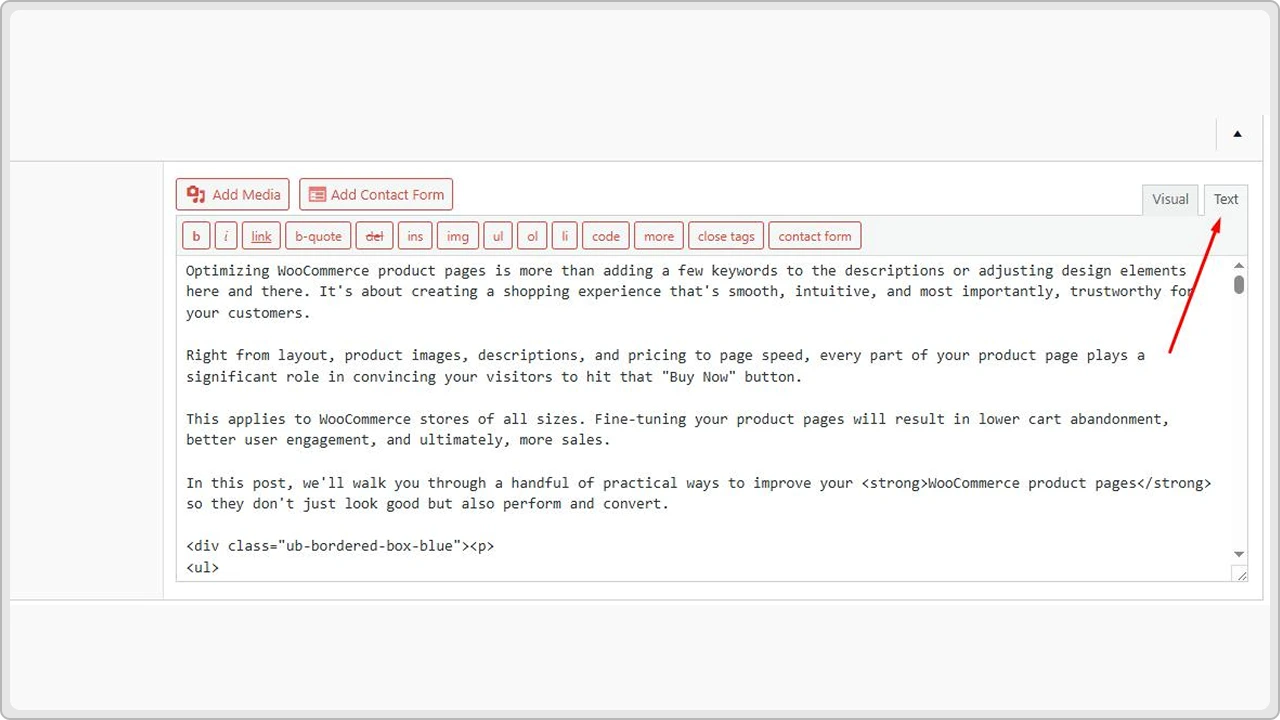
- If you’re using the Classic Editor, switch to the Text tab and copy everything from there.
Step 2: Create a New Page
Now, go back to your dashboard and click on Pages → Add New.
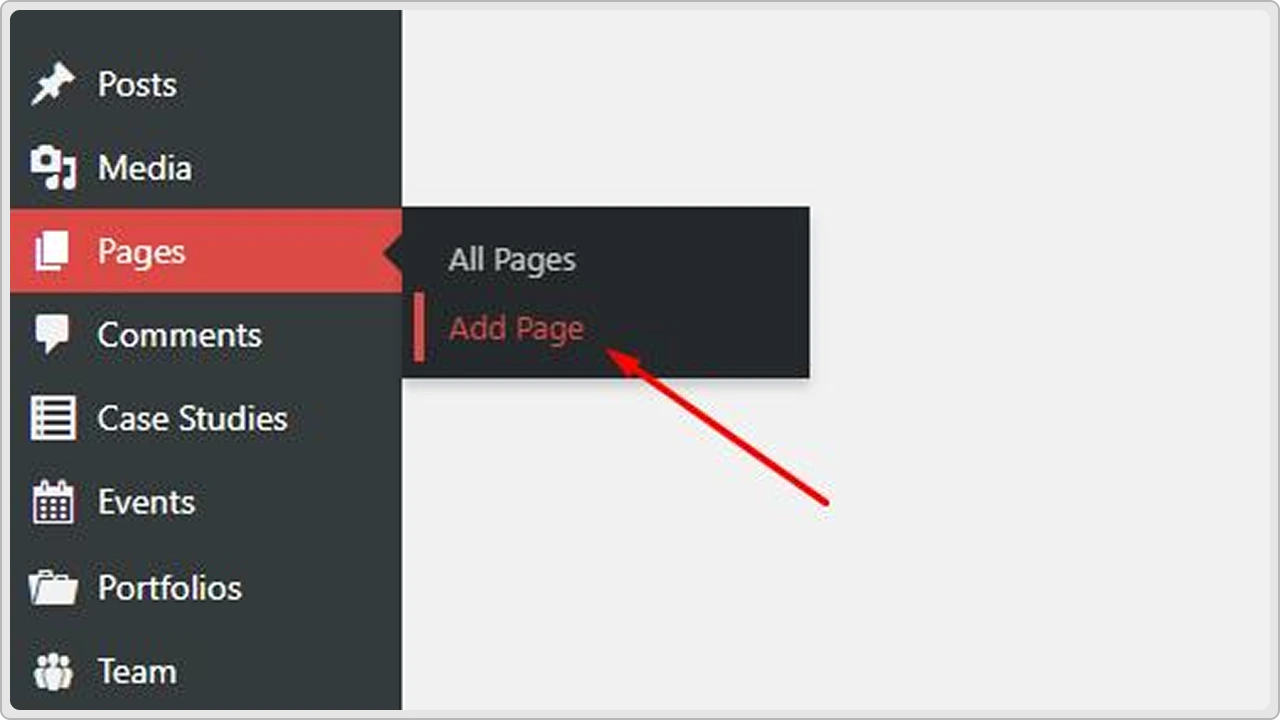
Give your new page a title, then paste the content you copied into the page editor.
Step 3: Match the Settings
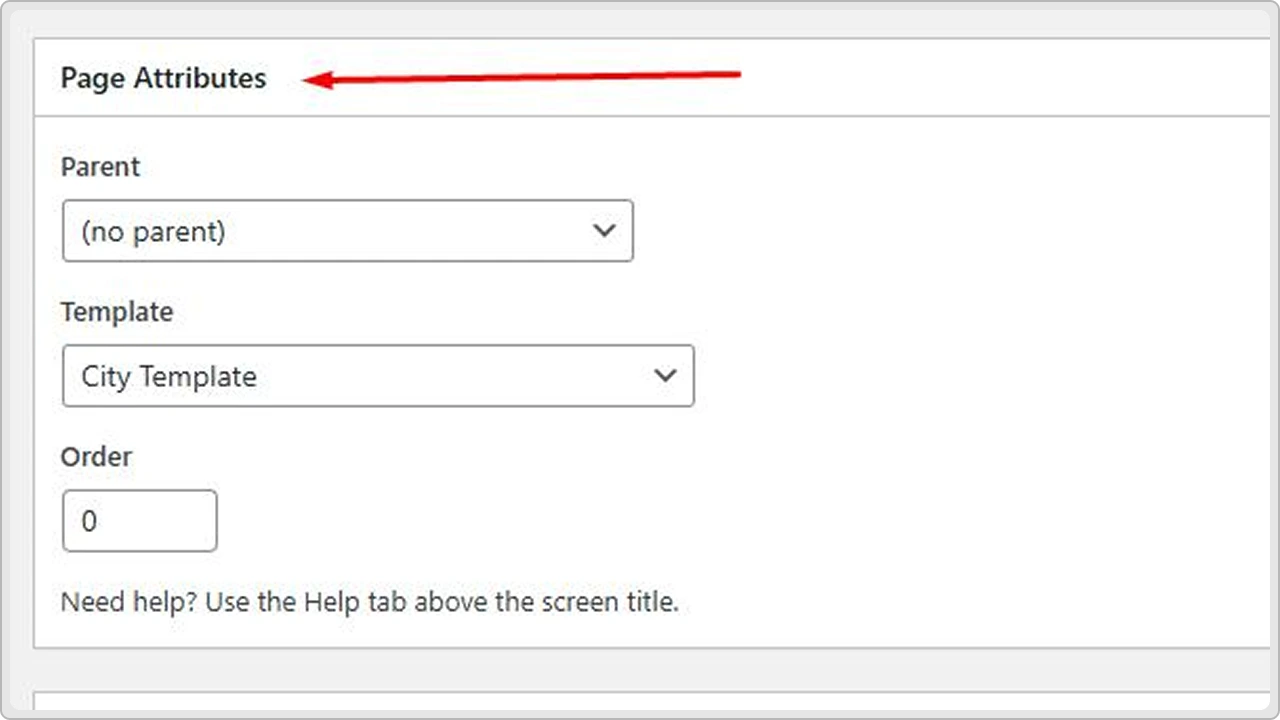
Make sure to check your Page Attributes, such as the template, featured image, or custom fields. These don’t carry over automatically, so you’ll need to set them manually.
Step 4: Save or Publish
Once you’re done reviewing and editing, click Save Draft or Publish, depending on what you want to do next.
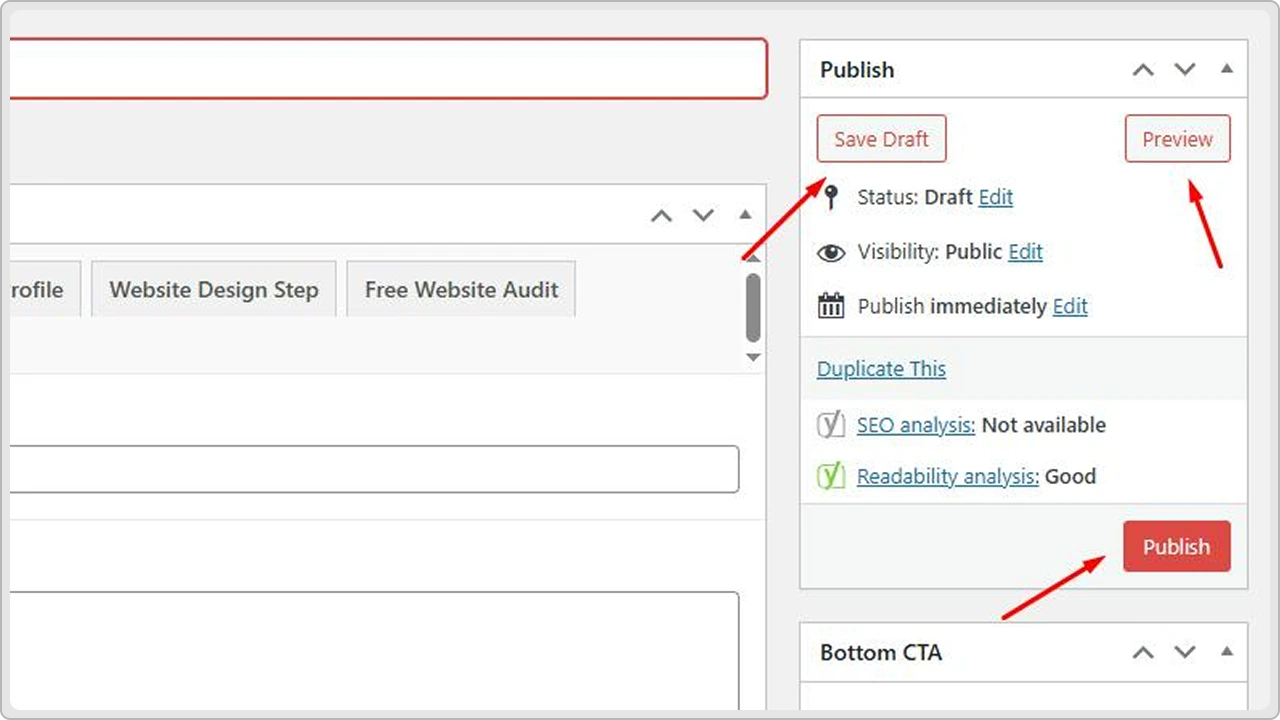
Although it’s a manual process, this method is pretty quick, clean, and works perfectly if you don’t need to duplicate pages often.
Method 3: Duplicate a Page Using a Page Builder
If you’re using a page builder like Elementor, Divi, or WPBakery, duplicating a page gets even easier. Yes, easier than using a plugin.
The thing is, most of these page builders already have built-in options to clone layouts, save templates, or copy designs in just a few clicks.
Here’s how it works with a few popular builders:
Elementor
- Open the page you want to duplicate with Elementor.
- Click the arrow beside the Update button at the bottom of the editor.
- Choose Save as Template.
- To use it, create a new page, open it in Elementor, and click Add Template to insert your saved layout.
Alternatively, you can right-click anywhere on the page and choose Copy All Content, then paste it into a new page.
Divi Builder
- Open your page in Divi.
- At the bottom of the editor, click on the Save to Library icon.
- Give your layout a name and save it.
- When you create a new page, simply load that saved layout from your Divi Library.
Divi also lets you clone an existing page directly from the builder, which is perfect if you’re creating a similar layout.
WPBakery Page Builder
- Open the page you want to copy in the backend editor.
- Click Templates from the top menu.
- Save the current layout as a template.
- Create a new page and insert that saved template.
You might notice that each builder has a different version of ‘duplicate,” but they all do the same thing, which is to get you a perfect copy of your existing design.
Tips for Managing Duplicated Pages
Duplicating pages is simple and easy, but it can also get messy if you’re not careful. A few smart habits can help you stay organized and avoid confusion, especially when you’re working on multiple versions of a page.
Simple tips to keep things neat:
- Add words like “Copy,” “Version 2,” or “Draft” to the title so you can instantly tell your duplicate posts apart.
- Change the meta titles, descriptions, and focus keywords on any duplicated page to avoid duplicate content issues.
- Make sure links inside the copied page point to the correct destinations and not the original version.
- If your original page uses a specific custom page template, make sure the duplicate is assigned the same one for a consistent layout.
- If the copy includes older visuals, swap them out before publishing.
- Once your updated version is live, delete any duplicate posts or pages you no longer need.
Conclusion
Duplicating a page in WordPress is a quick and simple way to save time. It lets you reuse a page you already like instead of building a new one from the beginning. Once you know how to do it, creating new pages feels much easier.
If you need help with your WordPress site, cmsMinds is a WordPress web agency that can help. We build WordPress websites from scratch that are fast, easy to use, and fit your business needs.
Talk to the experts at cmsMinds and let’s create something that truly works for you.