Reviews on


When you manage a WordPress site, one of the most important things you should set up is a backup. Don’t think “What possibly could go wrong with my website?”
Things can go wrong at any time. A plugin update might break your site, your web host could have issues, or you might accidentally delete something important. At cmsMinds, we’ve seen it all.
A backup is simply a copy of your site. It includes all your WordPress files and your database, which together hold your content, settings, and design. If something goes wrong, a backup lets you restore your site instead of starting over.
The good part is backing up a WordPress site isn’t complicated. You can use a plugin, rely on your hosting provider, or do it manually if you prefer.
In this guide, we’ll walk through beginner-friendly methods to back up your WordPress site and keep your data safe.
- A proper backup of your WordPress site includes both website files and the site’s database, giving you a full backup that can restore your site completely.
- The easiest way is to use a backup plugin that can schedule backups, save them to cloud storage, and restore your entire WordPress site in a few minutes.
- Many hosting providers also offer site backups through the hosting control panel, but it’s safer to keep copies outside your hosting account.
- You can also manually backup using an FTP client to copy all the files in your site’s root directory, and phpMyAdmin to export your SQL file.
- A good backup strategy means keeping more than one copy, testing them often, and making sure you always have a fresh backup before big changes or updates.
What Does It Mean to Backup a WordPress Site?
When we say backup, we don’t mean just saving a copy of your homepage or posts. A proper backup covers your entire WordPress site so you can bring it back exactly as it was.
There are two main parts you need to know about:
- WordPress files – These include your theme files, plugin settings, uploaded files, and the core WordPress folders that make your site run. Think of these as the structure and design.
- WordPress database – This is where all your content lives. Your posts, pages, comments, users, and settings are stored in the database. A database backup saves everything you’ve added or changed inside WordPress.
If you only copy the files and skip the database, you’ll miss all your content. If you only copy the database and skip the files, your site won’t look or function the same. That’s why you need both to create a complete backup.
That’s why we always recommend doing a full backup that includes all the files plus the database. That way you can restore your entire site, not just pieces of it.
Our team at cmsMinds can set up a reliable backup system for your site and make sure you never lose your work.
How to Backup Your WordPress Site (Beginner-Friendly Methods)
There are a few different ways to create backups. Some are easy and done with a few clicks, while others give you more control but take a little extra work. Here are the most common options we recommend for beginners.
1. Use a Backup Plugin
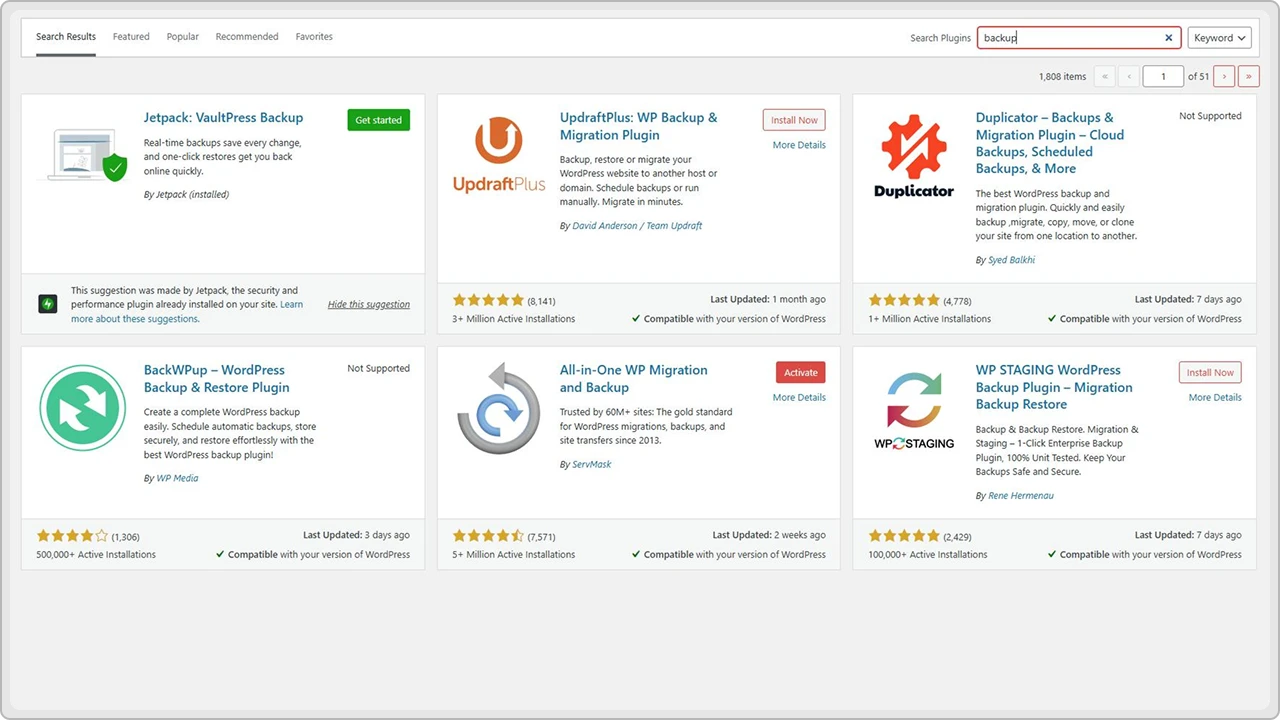
For most WordPress site owners, a plugin is the easiest way to handle backups. Instead of worrying about copying files manually, the plugin takes care of the backup process in the background.
With a good plugin, you can:
- Schedule automatic backups (daily, weekly, or monthly).
- Save your backup files to cloud storage like Google Drive, Dropbox, or Amazon S3.
- Restore your site in just a few clicks if something breaks.
- Choose between a full backup of your entire WordPress site or only certain parts like your database or uploaded files.
Some of the most trusted WordPress backup plugins are:
- UpdraftPlus – A free option with paid upgrades. Lets you schedule backups, choose remote storage, and restore backups directly from the WordPress dashboard.
- Jetpack Backup – From the team behind WordPress.com. It offers real-time backups, which are useful for eCommerce stores and sites with frequent updates.
- BlogVault – Known for reliability. It handles site backups, staging sites, and even migrations.
Duplicator – Great for creating backups and also moving your WordPress site to a new server or domain.
The best part is you don’t have to touch your site’s root directory or mess with an FTP client. Once installed, you can manage everything right from your WordPress dashboard. Set your schedule, select where you want to store your backups, and let the plugin do the heavy lifting.
💡At cmsMinds, we recommend plugins for most site owners because they save time, reduce errors, and give peace of mind.
2. Check Your Hosting Provider
Many hosting companies understand how important backups are, so they include them as part of your hosting plan. Some provide automatic backups every day, while others let you schedule them weekly or monthly. This means your site is being copied regularly without you lifting a finger.

You’ll usually find the backup options in your hosting control panel (cPanel, Plesk, or a custom panel, depending on your host). From there, you can:
- Create a full backup of your entire WordPress site, including website files and your site’s database.
- Download a local backup to your own computer, so you’re not relying only on your host.
- Restore a previous version of your site with one click if something goes wrong.
For many site owners, this is a great safety net. But there are a few things to keep in mind:
- Backups stored on the same server are at risk if the server crashes or your hosting account gets hacked.
- Some hosts keep backups only for a short time (like 7–30 days).
- On cheaper plans, backups may not be included, or they might use up your server resources if you trigger them too often.
That’s why we always suggest combining your host’s backup system with an external option like cloud storage or a backup plugin. This way, even if your web host fails, you’ll still have a copy of your WordPress site saved somewhere safe.
As a company that specializes in WordPress development, we’ve seen many site owners rely only on their web host and then lose their site backups when the hosting provider had an issue. Don’t make that mistake. Always keep at least one copy outside your hosting account.
3. Do a Manual Backup
If you want full control over your backups, you can create them manually. This takes more effort compared to using a plugin or your host, but it gives you the confidence that you know exactly where your backup files are stored.

A manual backup has two parts: your WordPress files and your WordPress database.
Backing up WordPress files
Your files include everything that makes your site run like the WordPress core, theme files, plugin settings, uploaded files, and your wp-config file.
To copy these:
- Connect to your site using an FTP client or secure file transfer protocol (SFTP) with your FTP credentials.
- Navigate to your site’s root directory (often called public_html or www).
- Download all the files and folders to your local machine. To save space, you can compress them into a zip file.
Backing up the WordPress database
The site’s database stores your content, including posts, pages, comments, users, and settings.
To back it up:
- Log in to your hosting control panel.
- Open phpMyAdmin.
- Select the correct database linked to your WordPress installation.
- Export it as an SQL file and save it on your computer.
Once you have both the files and the database file, you’ve got a complete website backup.
Manual backups are handy if you manage a very large website, a multisite network, or if you just prefer not to depend on plugins. The downside is that you have to remember to do it regularly and store the backups somewhere safe, like cloud storage or a remote server.
At cmsMinds, we usually recommend manual backups for advanced users or as part of a bigger backup strategy. For most beginners, plugins or host backups are simpler to manage.
Where Should You Store Your Backups?
Creating backups is only half the job. Where you keep them is just as important. If your backups are stored in the wrong place, you could still lose everything when something goes wrong.
Here are the most common storage options:
1. On the Same Server
Some web hosts save your site backups directly on the same server where your site runs. This is better than nothing, but it’s also risky. If the server crashes, you could lose both your site and the backup at the same time.
2. On Your Local Machine
You can always download your backup files and keep them on your local computer. This gives you direct access, but it’s not enough on its own. If your laptop or hard drive fails, your local backup is gone too.
3. Cloud Storage
Services like Google Drive, Dropbox, or Amazon S3 are some of the safest options. Cloud storage lets you keep multiple copies of your WordPress backups, and you can access them from anywhere. Many WordPress backup plugins make it easy to connect your account and save backups automatically.
4. Remote Server
If you have access to another server, you can store backups there through secure file transfer protocol (SFTP). This works well for agencies or site owners with a bit of server management experience.
💡At cmsMinds, we usually recommend our clients follow the 3-2-1 rule: keep three copies of your backups, store them in at least two different places, and make sure at least one copy is offsite. That way, you’ll always have a working backup no matter what happens.
Tips for Managing Backups
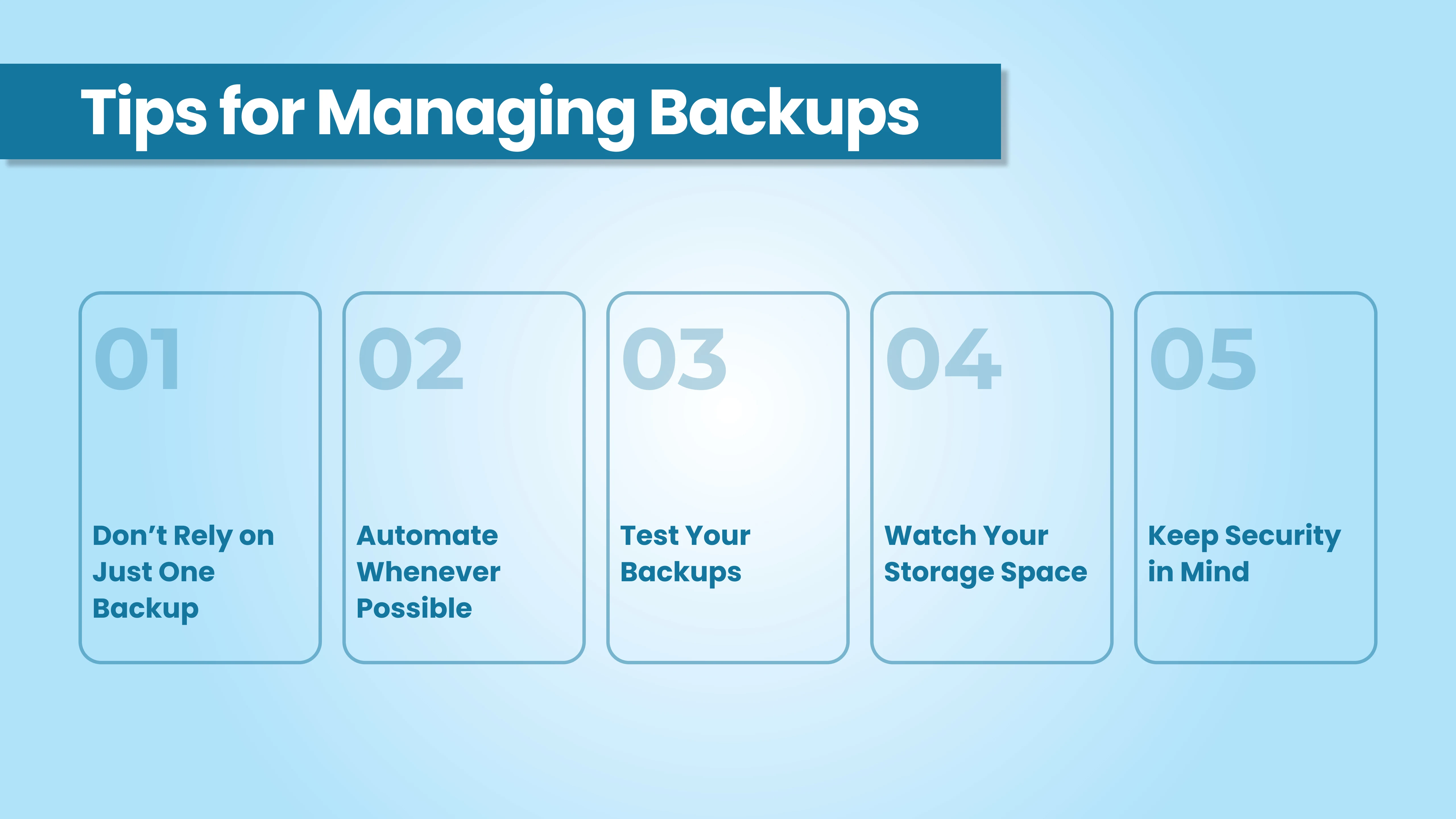
Backing up your WordPress site is one thing, but managing those backups properly is what keeps your site safe in the long run. Here are some simple tips we share with our clients:
1. Don’t Rely on Just One Backup
Keep at least 2–3 copies stored in different places. For example, one on your local machine, one in cloud storage, and one with your hosting provider. If one fails, you’ll still have another copy.
2. Automate Whenever Possible
If you forget to back up, your backup system isn’t doing its job. Use a backup plugin or your hosting control panel to schedule automatic backups so you never have to remember.
3. Test Your Backups
A backup that doesn’t restore is useless. Every now and then, try restoring your site on a staging site or test server. This makes sure your backup files are working and that you’re saving the correct database.
4. Watch Your Storage Space
If you run a very large website or a multisite network, backups can eat up space quickly. To save space, delete older backups you no longer need and keep only the most recent ones.
5. Keep Security in Mind
If you’re saving backups on a remote server or even your local backup, make sure they’re protected. Anyone with access to those files can access your entire WordPress site, including your database file.
An effective backup strategy is not just about creating backups. It’s about keeping them safe, organized, and ready to use whenever you need them.
Conclusion
In simple words, you should treat backups as part of running a WordPress site. A single mistake or problem with your web host can wipe out your work. And that’s why having a complete website backup is super important, as it makes recovery simple.
A proper backup is more than just copying a few website files. It’s a full backup that includes your database, your plugin settings, your theme files, and everything in your site’s root directory. With the right system in place, you can roll back to a previous version of your site in just a few minutes.
You don’t need advanced technical skills to create backups. A backup plugin can automate the process, your hosting provider may offer automatic backups, and you can always manually backup if you want full control. The important thing is to have a reliable backup strategy that fits the size and activity of your site.
At cmsMinds, we’ve seen how the right backup plan saves time, money, and stress. Whether you use plugins, your hosting account, or your own backup system, make sure you create backups regularly and store them safely. That way, no matter what happens, your entire WordPress site can always be restored.
From complete website backups to ongoing updates and support, cmsMinds can handle the technical side so you can focus on growing your business.