Reviews on




Want to learn how to use Elementor in WordPress? This guide will walk you through everything step by step.
We’ll cover how to install the Elementor plugin, explore the free version, upgrade to Elementor Pro, and use advanced features like the theme builder, popup builder, and WooCommerce builder.
You’ll also learn how to design custom product pages, apply custom CSS, and create professional layouts that work with any WordPress theme.
- Elementor is a visual builder plugin for WordPress that lets you design pages using a drag-and-drop interface with no coding required.
- The free version offers core widgets and basic layouts, while Elementor Pro unlocks advanced features like Theme Builder, Popup Builder, and WooCommerce Builder.
- You can install Elementor directly from your WordPress dashboard and start building pages using templates or custom layouts.
- The Elementor editor is user-friendly and allows full control over styling, layout, and mobile responsiveness.
- With Pro features, you can design your entire site, create custom product pages, and apply global styles for a consistent, professional look.
What is Elementor
Elementor is a page builder plugin that adds a visual drag-and-drop editor to your WordPress dashboard. It allows you to create and customize pages without touching code. You can work with pre-built templates, add widgets, adjust layout and styling, and see changes in real time using the Elementor editor.
Elementor as a WordPress Page Builder
Elementor transforms the default editing experience in WordPress into a full visual design tool. Instead of working with the block editor, you can build your entire page layout using a clean, user-friendly interface. It supports everything from simple text sections to advanced page designs with dynamic content, interactive elements, and responsive layouts.
Whether you’re building a landing page, a product showcase, or an entire site, Elementor offers the flexibility and control needed to create professional websites without relying on custom code or a developer.
Elementor Pricing: Is Elementor Free?
Elementor has 2 versions. The free version of Elementor gives you access to the core editor, basic widgets, and responsive controls, enough to build functional websites with ease.
| Feature | Essential | Advanced Solo | Advanced | Expert |
|---|---|---|---|---|
| Price (per month, biled annually) | $4.99 | $6.99 | $8.25 | $16.99 |
| Pay Today (Annual Bill) | $60 | $84 | $99 | $204 |
| Sites Include | 1 | 1 | Up to 3 | Up to 25 |
| Pro Widgets | 57 | 86 | 86 | 86 |
| Cloud Templates | 10 | 20 | 30 | 5,000 |
| Theme Builder | Yes | Yes | Yes | Yes |
| Dynamic Content | Yes | Yes | Yes | Yes |
| Form Builder | Yes | Yes | Yes | Yes |
| Popup Builder | Yes | Yes | Yes | Yes |
| Custom Code & CSS | No | Yes | Yes | Yes |
| Ecommerce Features | No | Yes | Yes | Yes |
| Collaborative Notes | Yes | Yes | Yes | Yes |
| Support | Yes | Yes | Yes | Yes |
But if you want more advanced features and design freedom, Elementor Pro offers a significant upgrade.
| Feature | Elementor Free | Elementor Pro |
|---|---|---|
| Drag and drop editor | Yes | Yes |
| Basic Widgets | Yes | Yes |
| Advanced Widgets | Yes | Yes(forms, sliders, tables, etc) |
| Theme Builder | No | Yes |
| Popup Builder | No | Yes |
| Woocommerce Builder | No | Yes |
| Global Setting | No | Yes |
| Custom CSS | Limited | Full access |
| Support and Updates | Community only | Premium Support included |
With Elementor Pro, you can design custom product pages, build templates for headers and footers, and access tools that help you create more advanced layouts across your entire WordPress site.
How to Install Elementor
First, we will see how to install the free version.
Installing the Free Version from the WordPress Dashboard
To get started, log in to your WordPress dashboard and follow these steps:
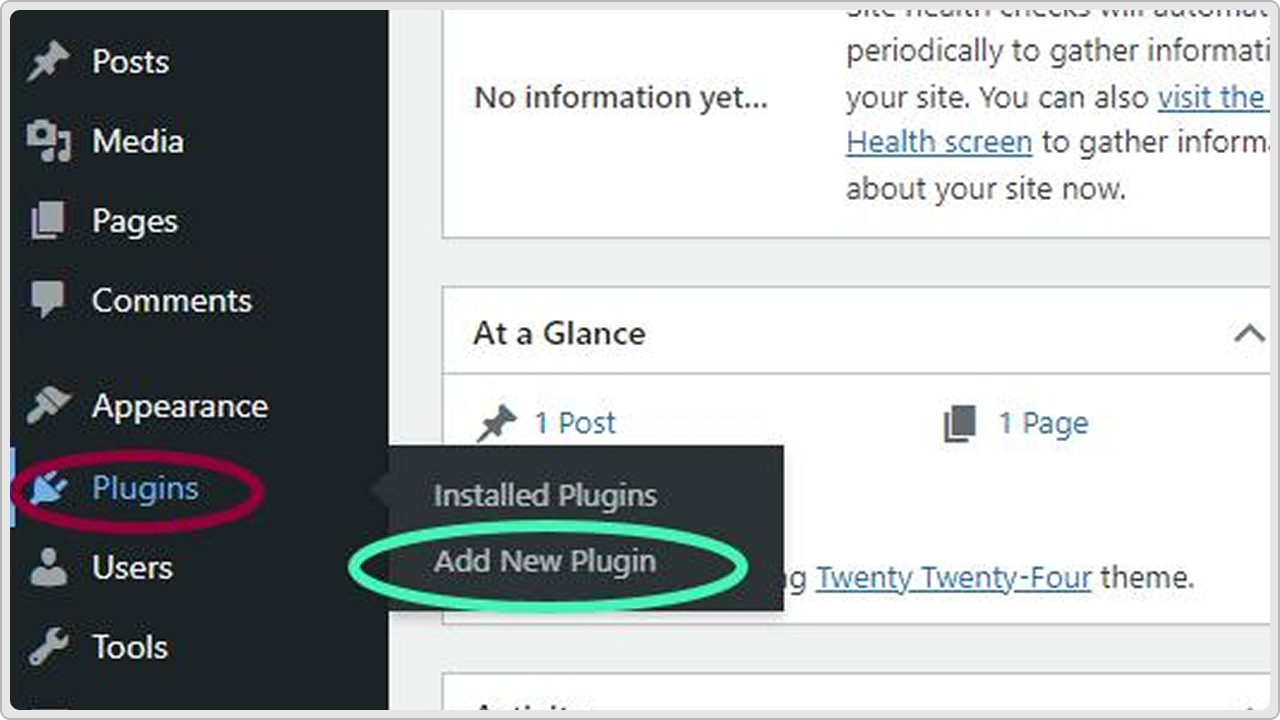
- Go to Plugins > Add New
- In the search bar, type Elementor
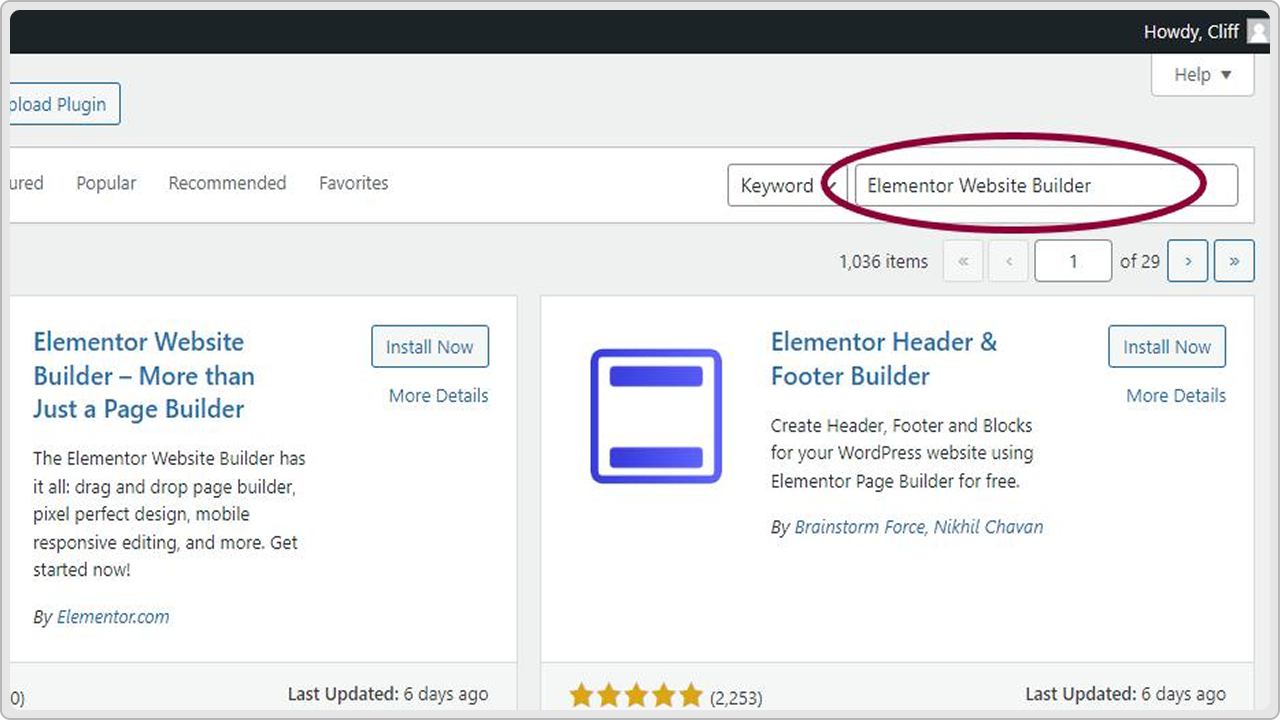
- Click Install Now on the Elementor Website Builder plugin
- Once installed, click Activate


You’ll now see the Elementor editor available when you create or edit a page or post. This free version includes the core builder, basic widgets, and responsive controls to help you create beautiful layouts without any code.

How to Install Elementor Pro
To use the Pro version, you’ll first need to purchase it from the official Elementor website and download the Pro plugin as a zip file.
Here’s how to install it:
- From your WordPress dashboard, go to Plugins > Add New
- Click Upload Plugin
- Select the Elementor Pro zip file you downloaded
- Click Install Now, then Activate
Important: Elementor Pro works on top of the free plugin, so make sure the free version is already installed and activated before uploading Pro.
Activating Your License
Once Elementor Pro is installed:
- Go to Elementor > License in your WordPress dashboard
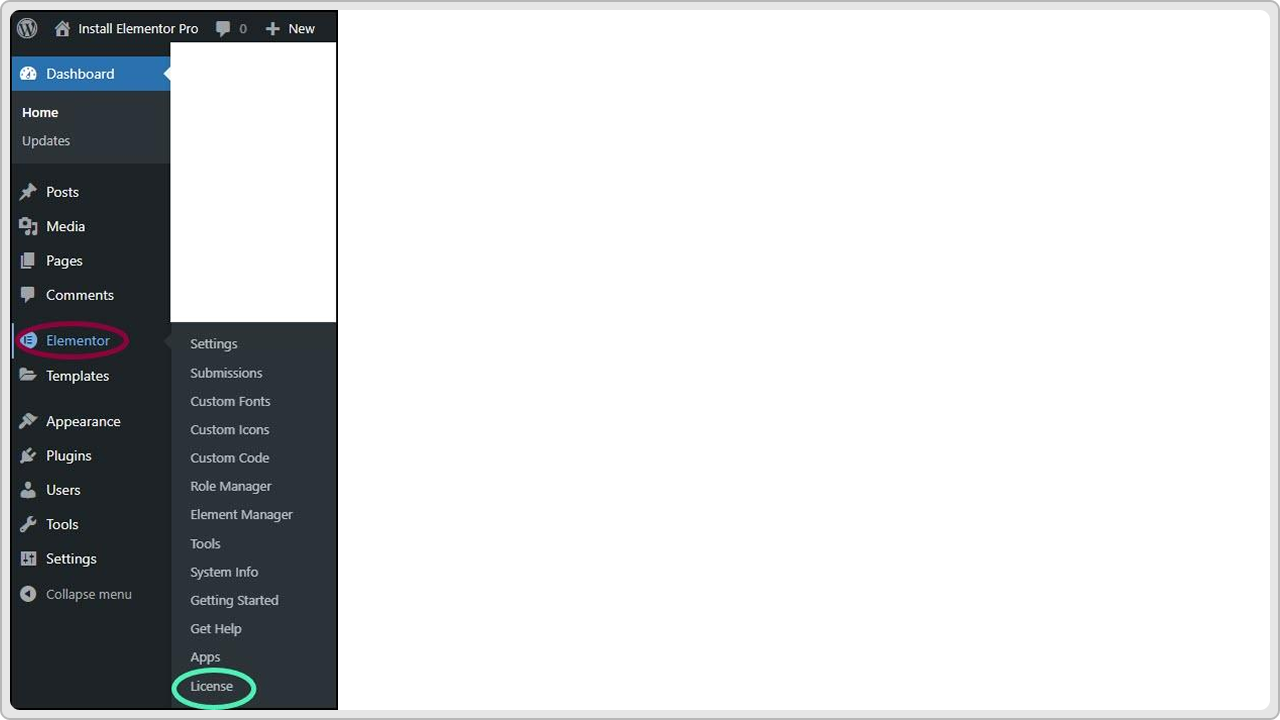
- Click Connect & Activate
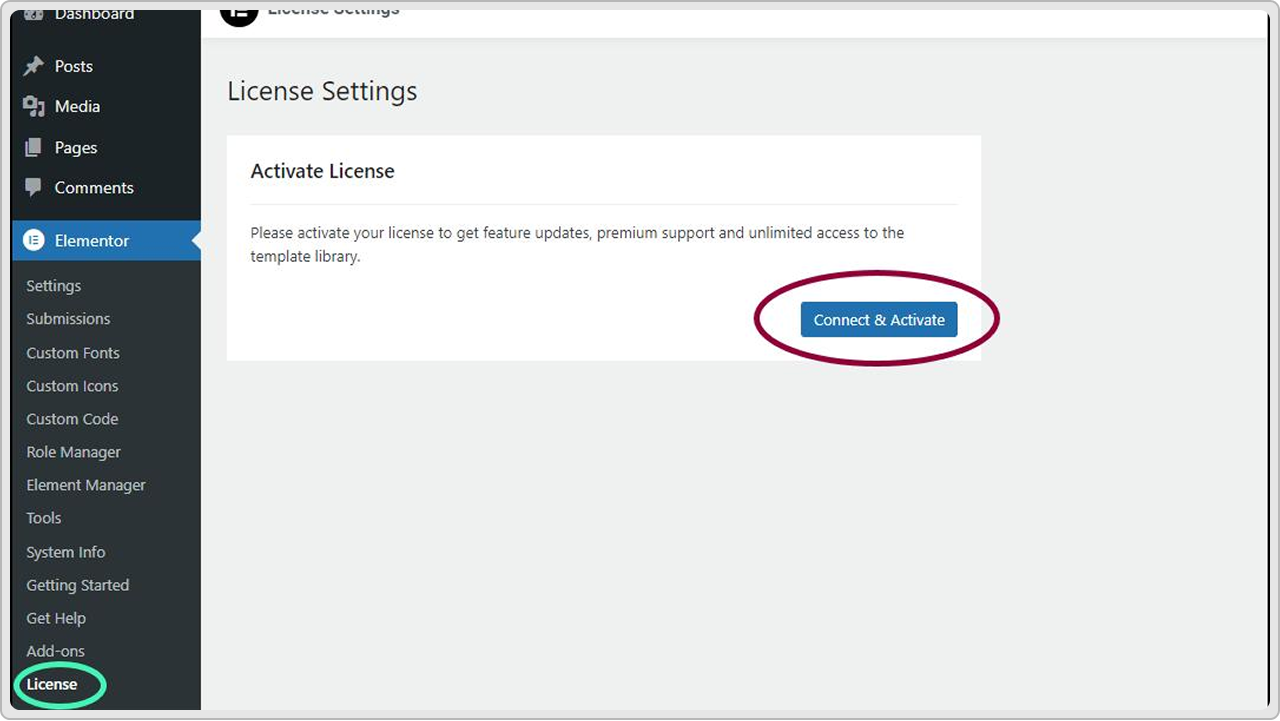
- Log in to your Elementor account and approve the connection


After activation, you’ll get access to advanced features like the theme builder, popup builder, WooCommerce builder, custom CSS controls, and more.
How to Use Elementor Page Builder in WordPress
Once Elementor is installed and activated, you can start building pages visually using the Elementor editor. Here’s what to do to get started.
Creating Your First Page
- In your WordPress dashboard, go to Pages > Add New
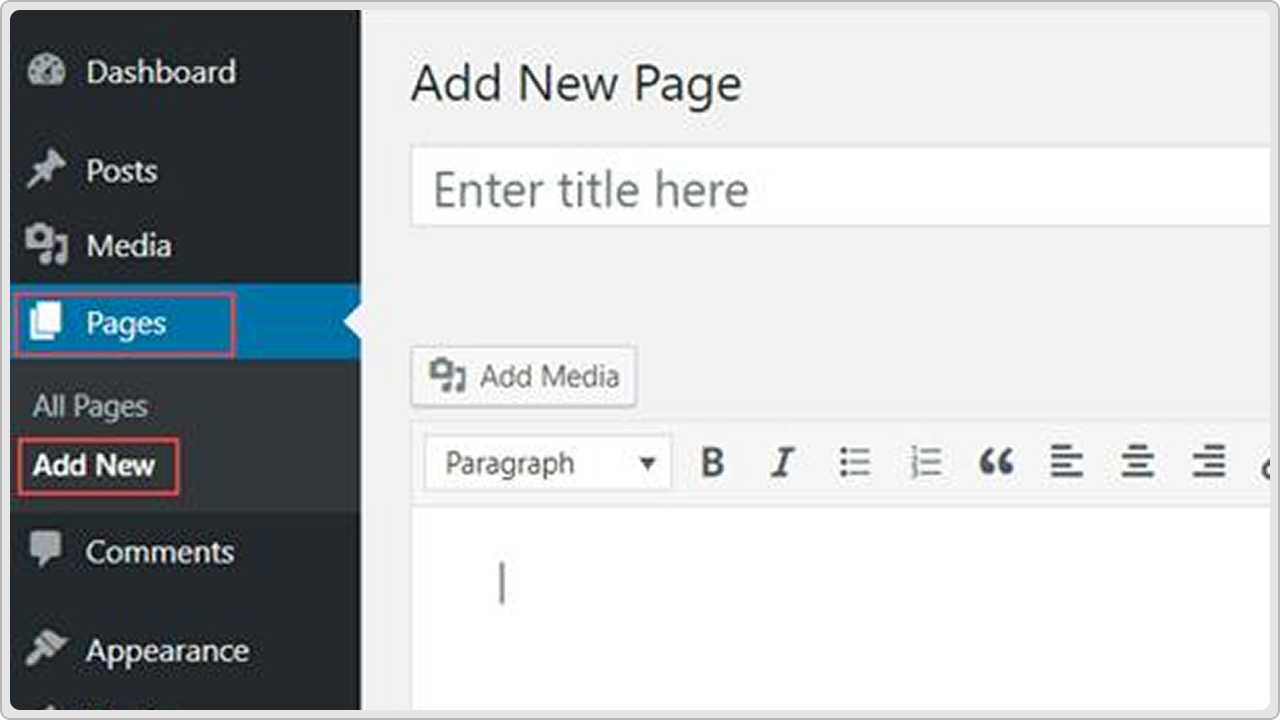
- Give your page a name, then click Edit with Elementor
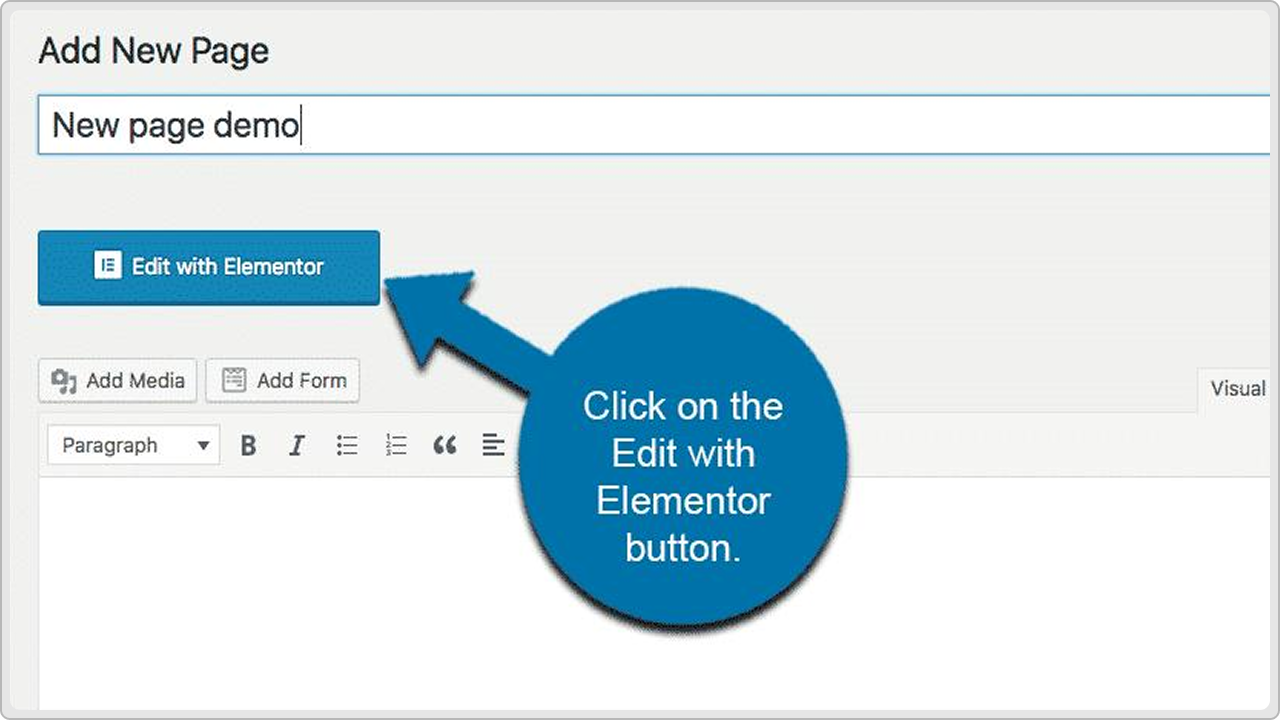
- The Elementor interface will load with a blank canvas


From here, you can choose to build your layout from scratch or insert a prebuilt template from the Elementor library. If you’re using the free Elementor plugin, you’ll have access to basic blocks. Elementor Pro unlocks more advanced layouts and professionally designed templates.
Understanding the Elementor Interface
The Elementor panel appears on the left, and your live page preview appears on the right. This layout allows you to build and see changes in real time.

A quick overview of the panel:
- Widgets tab: Drag and drop elements like text, images, buttons, and more
- Navigator: View and organize sections of the page
- Settings gear: Manage page layout and styling options
- Elementor button (update): Save or publish your page
Everything happens visually. You can click on any element and customize its content, style, or layout without needing to write code.
Editing with Widgets and Templates
Start by dragging widgets like heading, image, text editor, or button from the left panel into your page. You can style each one using the Style and Advanced tabs.

Want to speed things up? Use a template. Elementor offers predesigned sections and full-page layouts you can customize. Just click on the library icon.

You can also download, upload, and reuse templates across your WordPress site.
With Elementor Pro, you get access to premium widgets like forms, sliders, pricing tables, and dynamic content for more advanced designs.
Mobile Responsiveness and Preview
Elementor makes it easy to design pages that work across all screen sizes.

- Click the responsive mode icon at the bottom of the panel
- Toggle between desktop, tablet, and mobile views
- Adjust spacing, font sizes, and layout per device
You can preview how the page will look on different devices and make changes without affecting the desktop version. This ensures your WordPress website looks polished everywhere.
Advanced Features in Elementor Pro
Upgrading to Elementor Pro unlocks a set of tools that go beyond basic page editing. Now, these advanced features allow you to design and control your entire WordPress site from one place, without writing custom code. Imagine that!
Theme Builder
Ever wanted to change your site’s header or footer without digging into theme files? With the Theme Builder, you can. It gives you full control over your site’s global parts like blog layouts, category pages, single posts, product templates, and more.

Everything is done visually, right inside Elementor. You can even set rules to show different templates on different parts of your site and preview how things will look before pushing anything live. No more guessing or back-and-forth edits.
Popup Builder
Popups can actually be a great user experience when done right, and Elementor Pro makes that easy. You can design popups that fit your brand perfectly and trigger them based on user behavior like scrolling, clicking, or trying to leave the page.

Want to promote a sale, grab email signups, or make an announcement? You have complete freedom to add anything you need, including forms, images, countdown timers, or even WooCommerce products. It’s flexible, powerful, and much more engaging than basic pop-up plugins.
Form Widget and Integrations
If building forms in a regular WordPress website feels like an extra task, then you must try doing it in Elementor. You can drag in a form, style it however you want, and add exactly the fields you need, whether it’s a simple contact form, a quote request, or a more detailed survey.

You can also add conditional logic to make your forms smarter and more personalized. The best part is how easily they connect to your favorite tools like Mailchimp, HubSpot, ActiveCampaign, or Zapier, so every submission goes exactly where it needs to.
Global Settings
Coming to managing to site’s design, this whole thing becomes a lot easier with Global Settings. Instead of tweaking fonts and colors on every page, you just set your styles once and they apply across the entire site.

Change your brand colors or typography in one place, and it updates everywhere instantly. It saves time, keeps everything consistent, and helps your site always look polished and professional.
WooCommerce Builder
The WooCommerce Builder gives you full control over the design of your product pages, shop archives, and other ecommerce templates. You can build layouts using visual tools instead of PHP templates.

That’s it. Now that you know how to install Elementor, use the editor, and work with features like the Theme Builder and WooCommerce Builder, you’re ready to start building a professional website on your own terms.